Tutorial
This tutorial takes one design from an empty sketch to a generated solution. The tutorial shows how MethodSketch helps at each step of the Method, so you must already know the Method. The names are abstract and come from no real project, so you can look at the mechanics and not the domain.
Get started
Open MethodSketch
Open https://pad.methodsketch.app.
You need an account and a subscription before you can make a sketch. The menu has Home, Subscription, Sketches, Login and Register.
- If you have no account, click Register. The Membership site opens. Make your account there.
- Click Login and log in.
- If you have no subscription, click Subscription. The Membership site opens. Buy a subscription there.
Create a sketch
- Select Sketches.
- Click Create New.
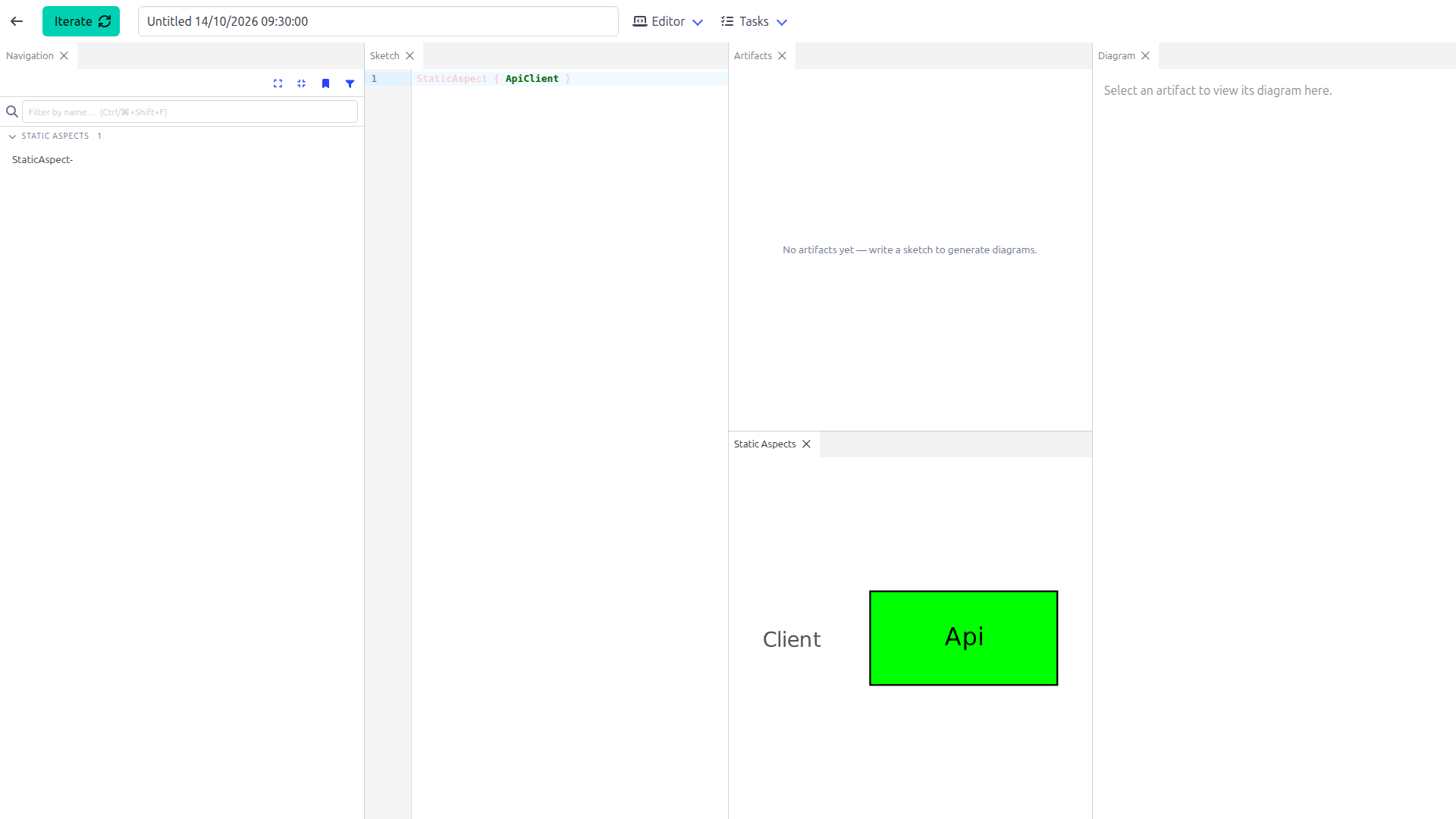
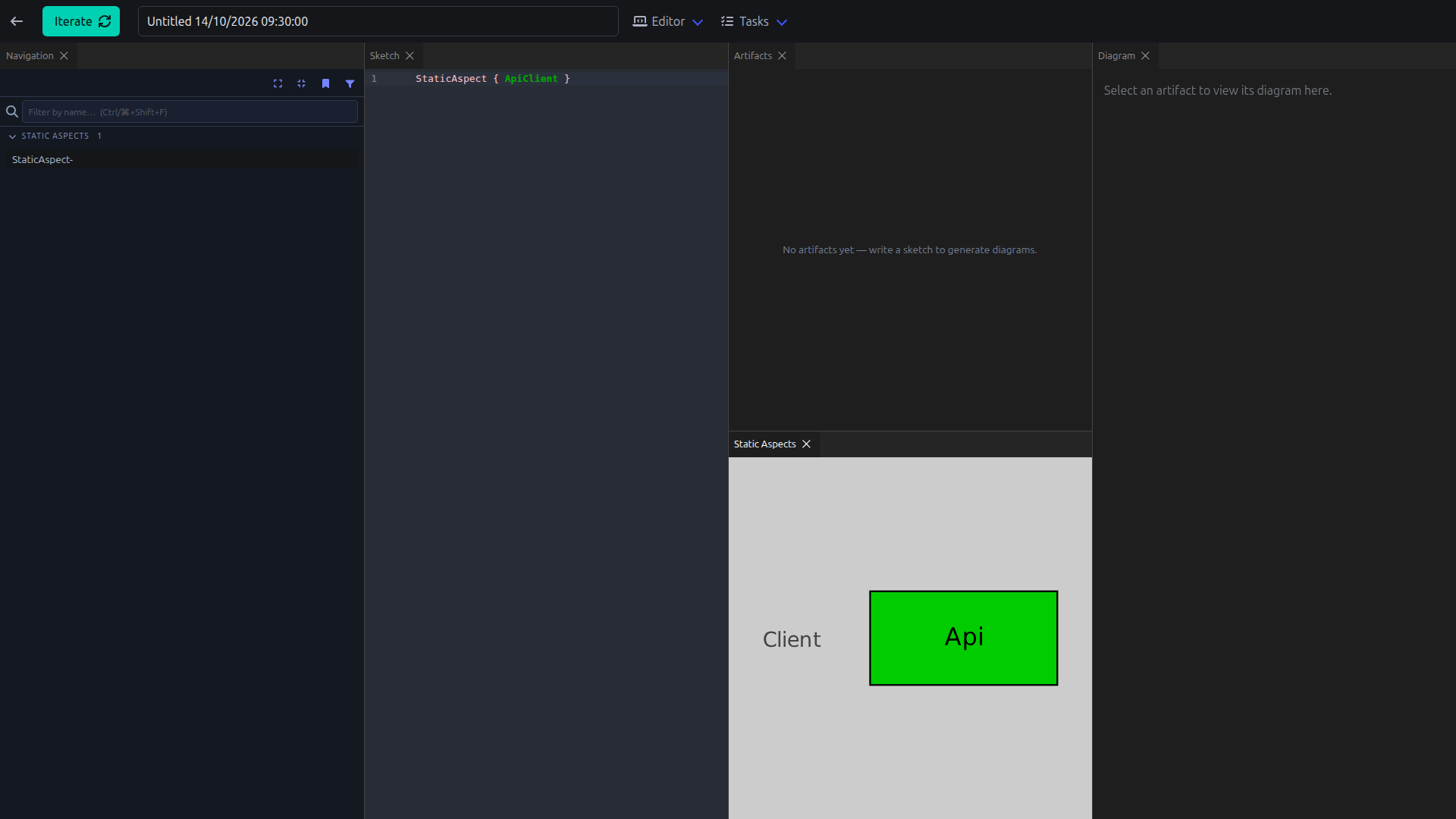
The new sketch opens with StaticAspect { ApiClient } in the editor, so you have something to change.
Name the sketch
Give the sketch a name that you will know in the list. Type the name in the box next to Iterate. The next iterate saves the name.


Iterate
Each time you want to see your change, click Iterate or press Ctrl+S. The pad draws the diagrams from the text and saves a version. You will iterate many times in each design session.
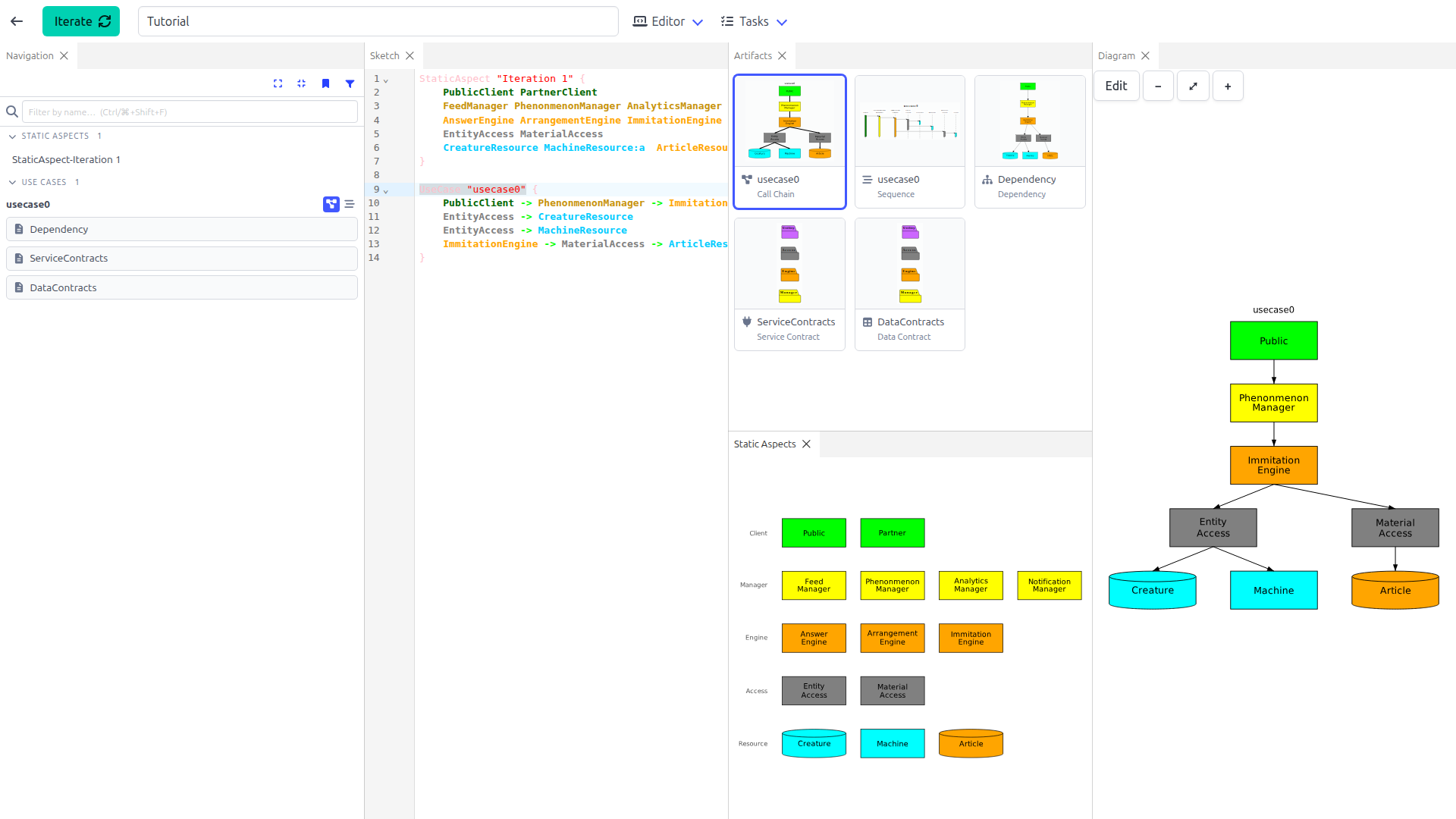
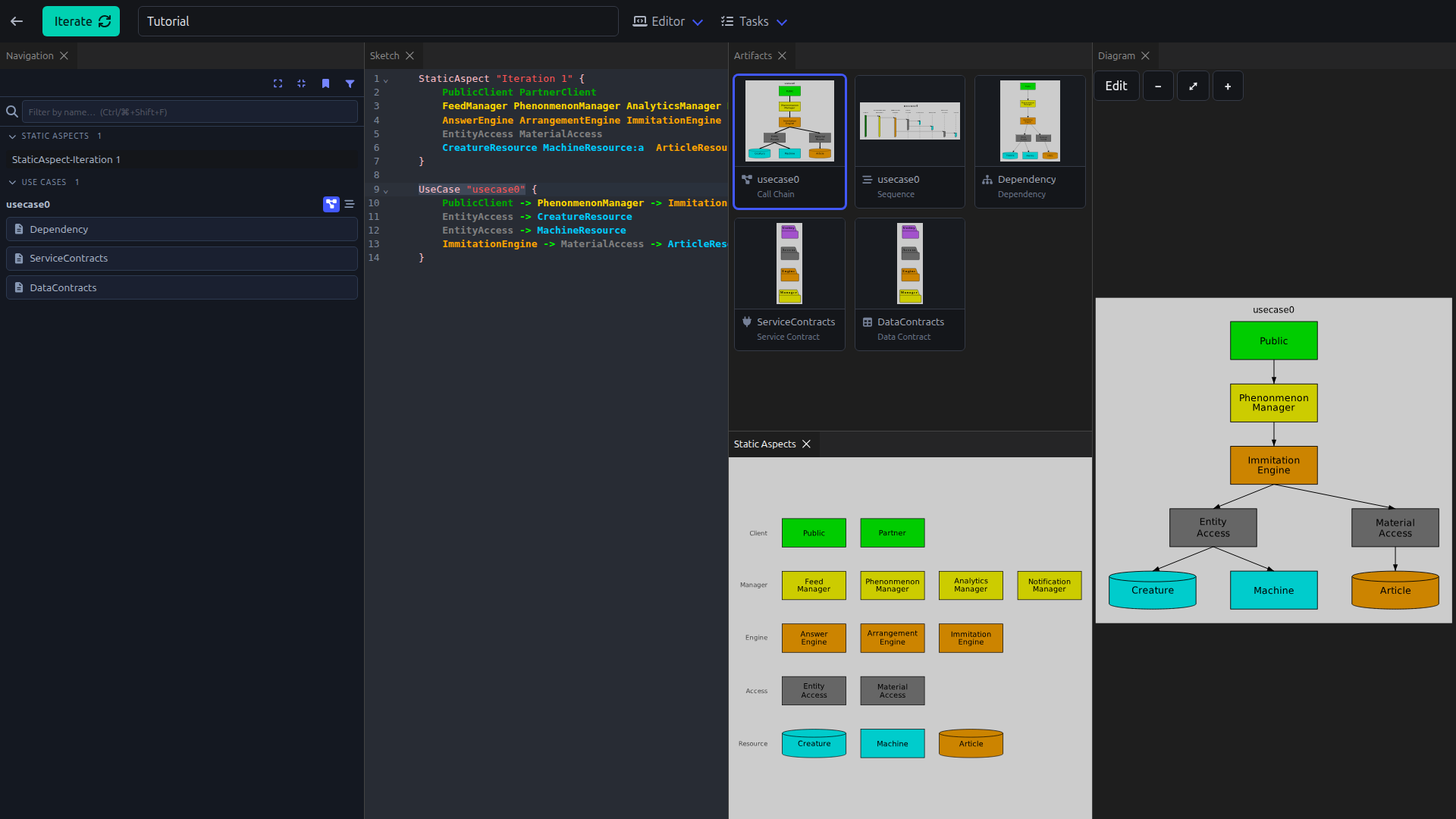
The Pad tells you more about the panels, the menus and the settings.
Generate
TIP
You can do the steps in this section after you make your System Design.
When the design is ready, the generate script turns the design into a .NET solution. You get a project for each component and the contracts from your detailed design.
Select Tasks ▸ Generate.
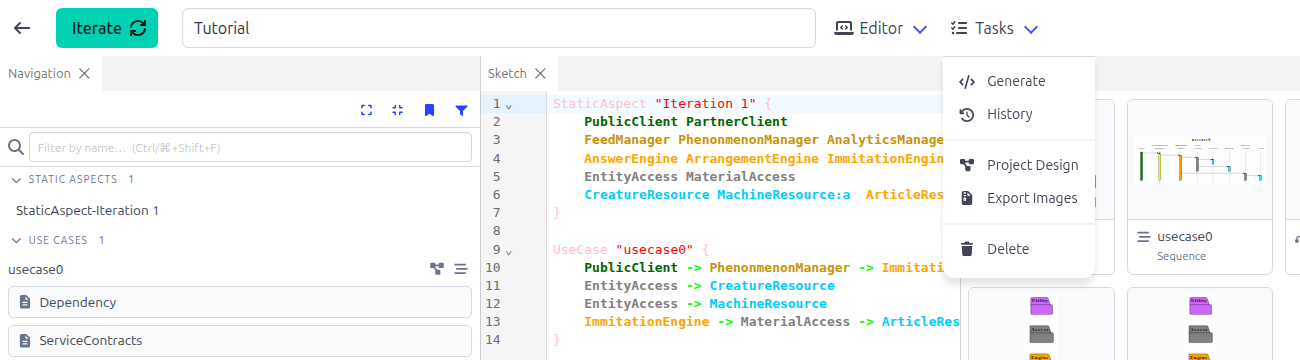
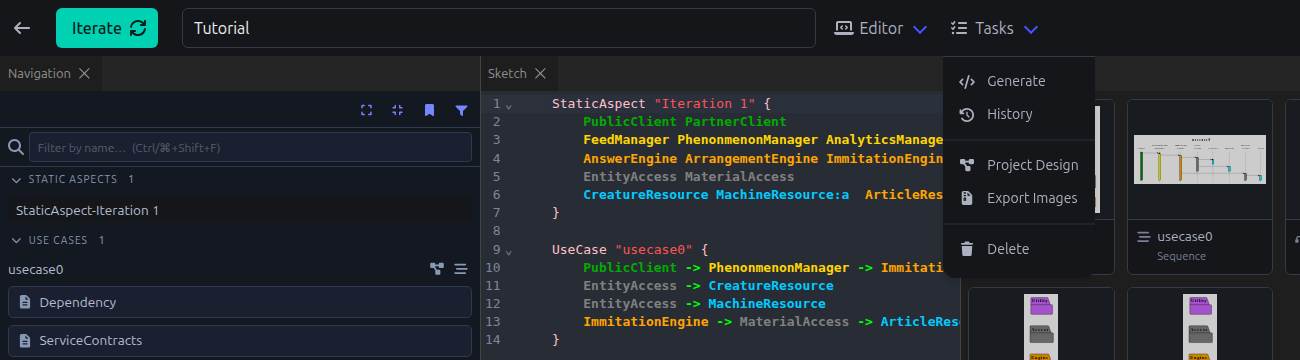
Examine the settings in the dialog. Company is the name of the solution and the root of the namespace. To change a setting, click Edit in Sketch Settings. Refer to Sketch Settings.
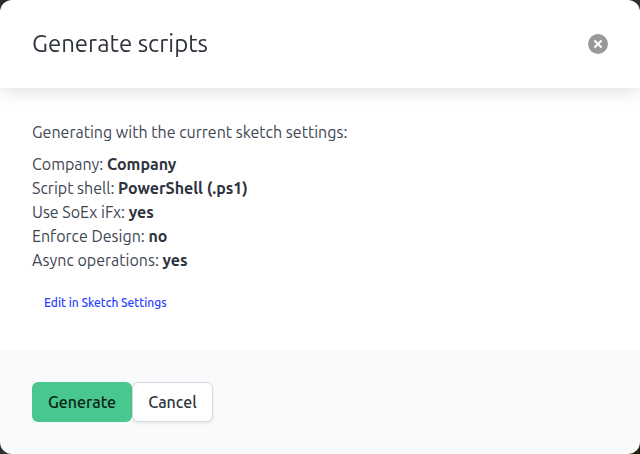
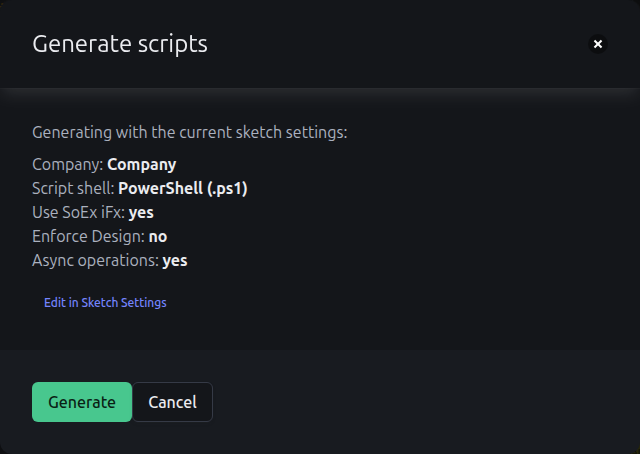
Click Generate.
Download the script.
Put the script in the folder for the solution.
Before you run the script for the first time:
- Install the .NET SDK.
- Install the project templates:
dotnet new install SoEx.Method.TemplatesRun the script. In PowerShell:
powershell.exe -executionpolicy bypass .\Generate.ps1In a Bourne shell:
sh Generate.shThe script makes this structure:
Common/          Contract, Identifier, Policy, Value
Component/       Manager, Engine, Access
Host/InProc/
iFx/             Client, Convention, Hosting, Observability, Proxy, Service
Test/
Company.slnx
Each component gets an Interface project and a Service project, for example Component/Manager/Phenonmenon/Interface and Component/Manager/Phenonmenon/Service.
Designs change. When your design changes, generate again and run the new script in the same folder. The script adds the new projects and leaves the other projects.
System Design
Anti-Design
Static Aspect
Start with the anti-design. The anti-design gets every idea out of your head and onto the screen, where you can see what is wrong with the design. Put every component that you can think of into one static aspect. Do not sort the components yet. Iterate to see each component in its layer.
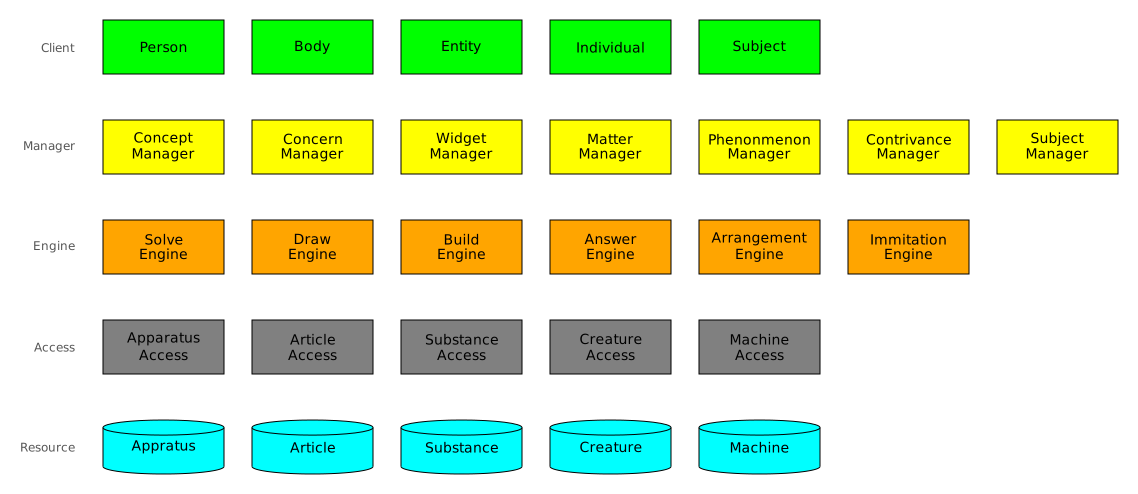
First Iteration
Static Aspect
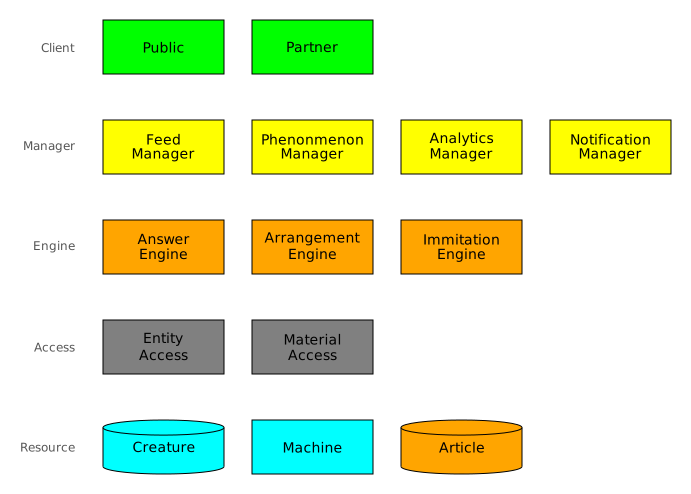
Now design for the volatilities. Keep a component for each volatility that you found and remove the others. Iterate, and compare the result with the anti-design.
Call Chains
A static aspect looks right until a use case goes through the static aspect. Write the call chain of each core use case. Each use case must go through the architecture with the components you have, and with no broken layer rule. The editor offers only the calls that the rules allow, so a call that you cannot pick is a sign to look again. A call that does not show in the call chain breaks a layer rule. Refer to Find out why a call is missing from a diagram.
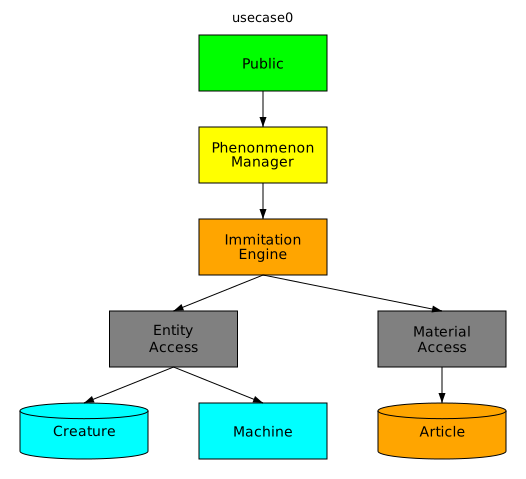
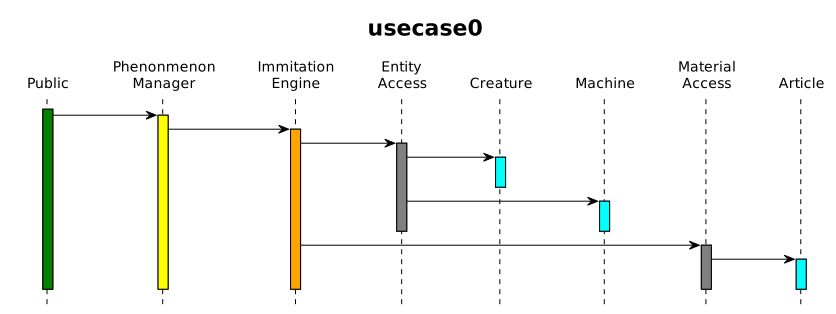
Iterate the architecture and the call chains
Each call chain shows you something to change: a manager that does too much, an engine that nothing calls, a utility that is missing. Change the static aspect and the use cases together, and iterate. Stop when the timebox ends, with your best design.
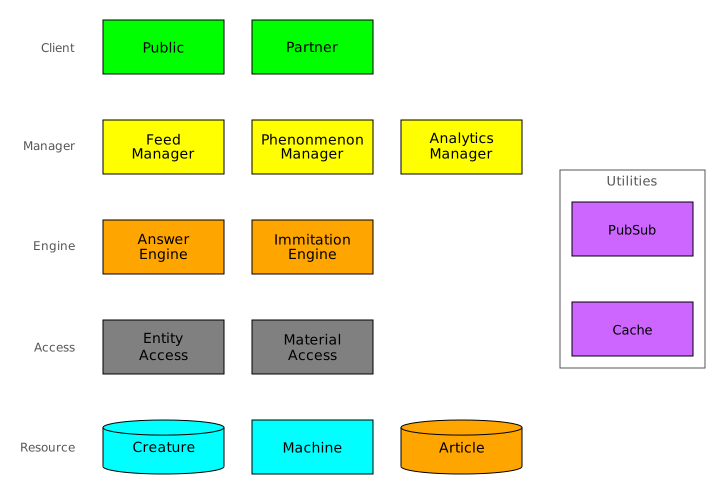
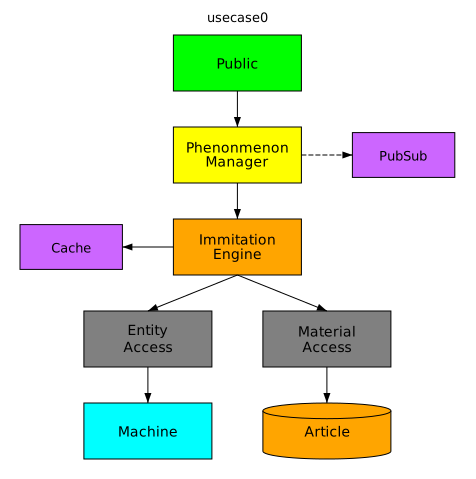
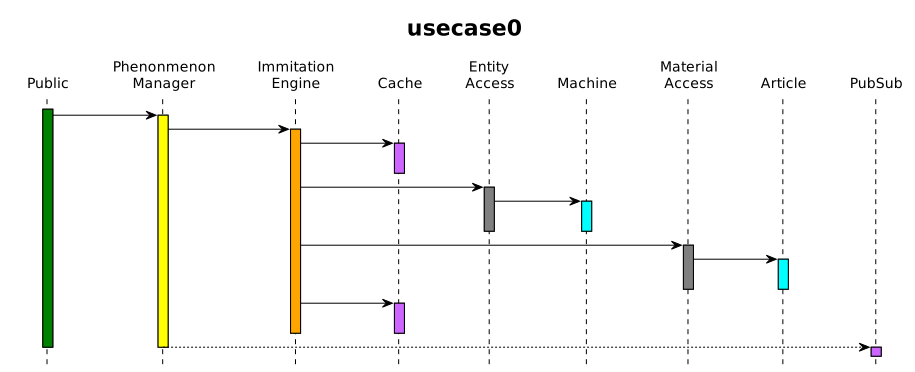
Detailed Design
Operation Names
Now give each call its contract. Start at the clients and go down one layer at a time. Put a facet and an operation name on each call. The sequence diagram shows the operations in the order they are called.


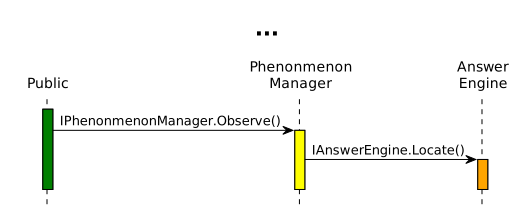
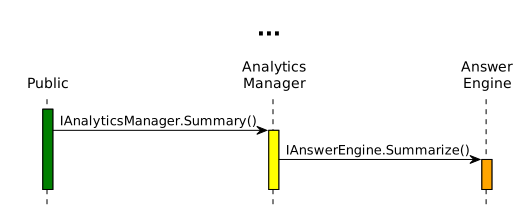
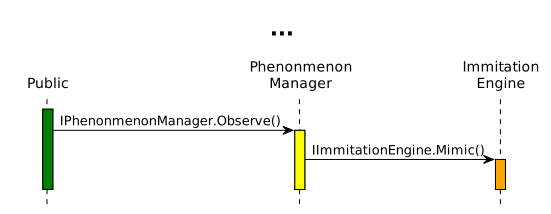
Do the same for the access layer. When you are done, each operation in the service contracts lists the use cases that call that operation.
DTO Names
Next, give each operation its request and its response. Go through the layers again in the same order. The DTO Flow of each use case shows which DTO goes over each call.
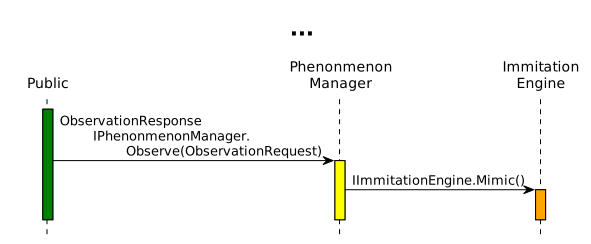
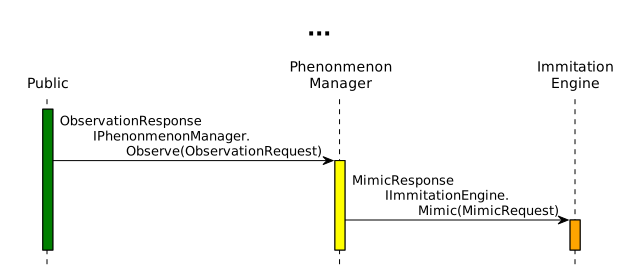
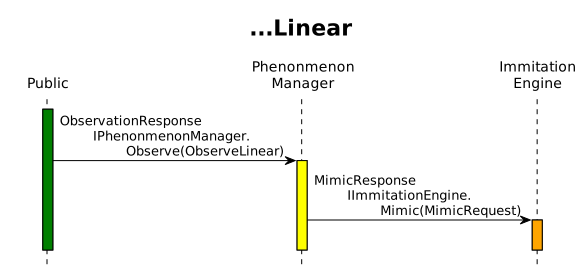
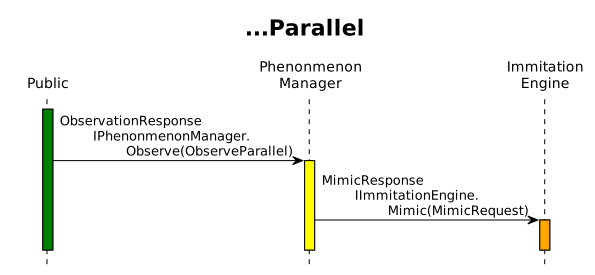
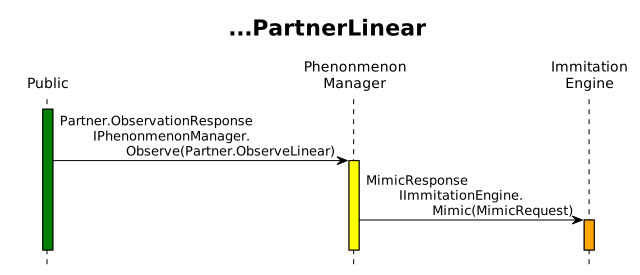
Two use cases often send different requests to one operation. Use a different DTO in each use case. The generator gives the DTOs a common base class, as you will see in Generate.
Contexts
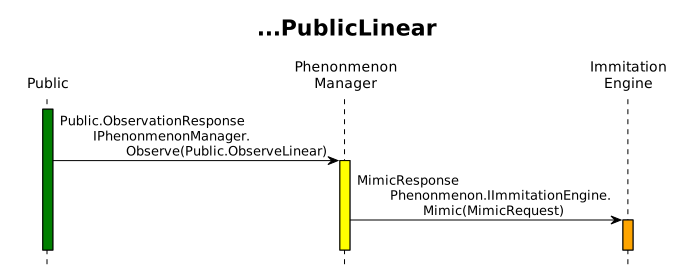
When two clients need their own version of a DTO, put each version in a context. The context becomes a namespace.
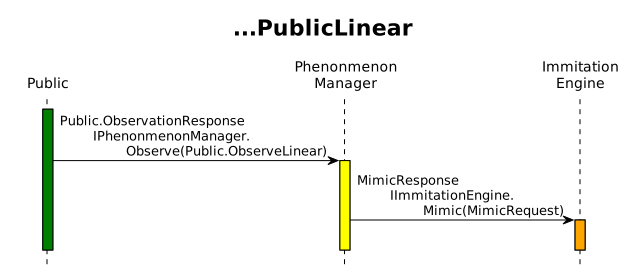
You can also put an interface in a context.
Wrapper
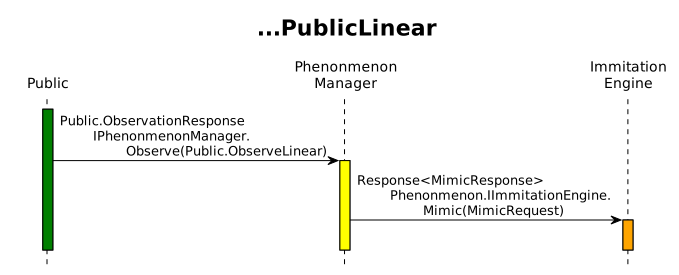
To give every engine response the same shape, use a generic wrapper.
Generate
When the detailed design holds up, check the sketch for types that have no definition. Then generate the solution. Select Tasks ▸ Generate and run the script on your computer. Then compare the code with the diagrams.
Solution, projects and DTOs
Each component gets its projects. The contracts go in the Interface project. A context becomes a folder and a namespace.
Component/
  Engine/
    Answer/Interface/IAnswerEngine.cs
    Common/Contract/Response.cs
    Immitation/Interface/
      MimicRequest.cs
      MimicResponse.cs
      Phenonmenon/IImmitationEngine.cs
  Manager/
    Analytics/Interface/IAnalyticsManager.cs
    Notification/Interface/INotificationManager.cs
    Phenonmenon/Interface/
      IPhenonmenonManager.cs
      Common/ObserveRequestBase.cs
      Common/ObserveResponseBase.cs
      Partner/ObservationResponse.cs
      Partner/ObserveLinear.cs
      Public/ObservationResponse.cs
      Public/ObserveLinear.cs
      Public/ObserveParallel.cs
The polymorphic request gets a base class. The operation uses the base class.
csharp
public interface IPhenonmenonManager
{
    Task<ObserveResponseBase> Observe(ObserveRequestBase request);
}
csharp
namespace Company.Manager.Phenonmenon.Interface.Public
{
    public class ObserveLinear : ObserveRequestBase
    {
    }
}
The context on the interface puts the interface in a separate namespace. The wrapper is in the engine common contract.
csharp
namespace Company.Engine.Immitation.Interface.Phenonmenon
{
    public interface IImmitationEngine
    {
        Task<Response<MimicResponse>> Mimic(MimicRequest request);
    }
}