Editor
The editor in the Sketch panel suggests what can come next, underlines what is wrong, and moves you around a long sketch. This page describes what the editor does in each place. For the language itself, refer to Syntax.
Autocomplete
| Key | Action |
|---|---|
| Ctrl+Space | Open the menu |
| ↑ ↓ | Choose a suggestion |
| Tab | Accept the chosen suggestion, or the first one if none is chosen |
| Enter | Accept the chosen suggestion. With none chosen, Enter starts a new line |
| Esc | Close the menu |
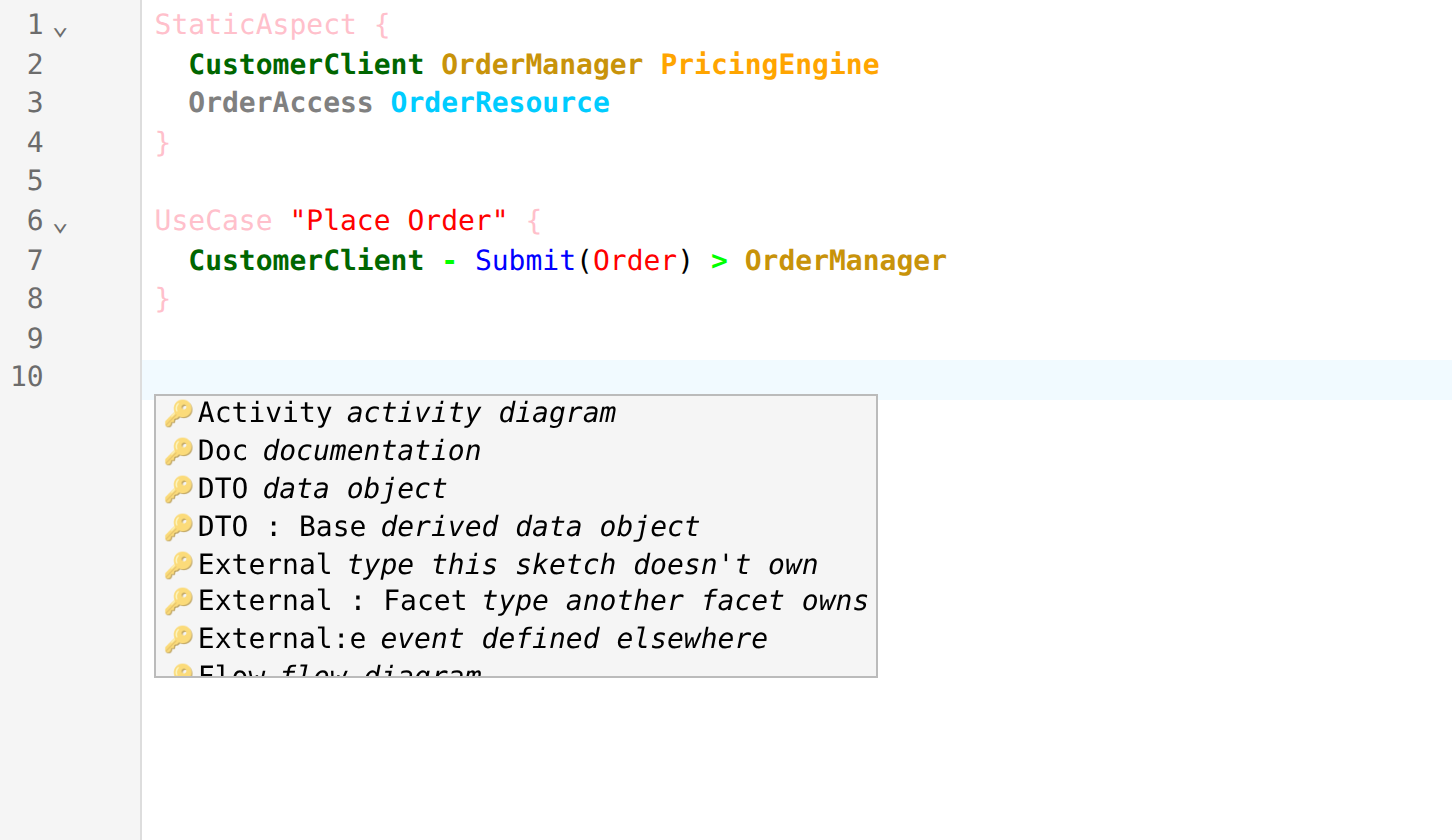
The menu opens as you type. The menu also opens by itself where a choice comes next:
- on a new line in a
UseCase,FloworStatechart - after each component and each arrow of a call
- in the type slot of an
IdentifierorValue - on an empty line between blocks, on the second Enter after the
}
The menu stays closed when you move the caret with the arrow keys or the mouse. Your recent picks come first.
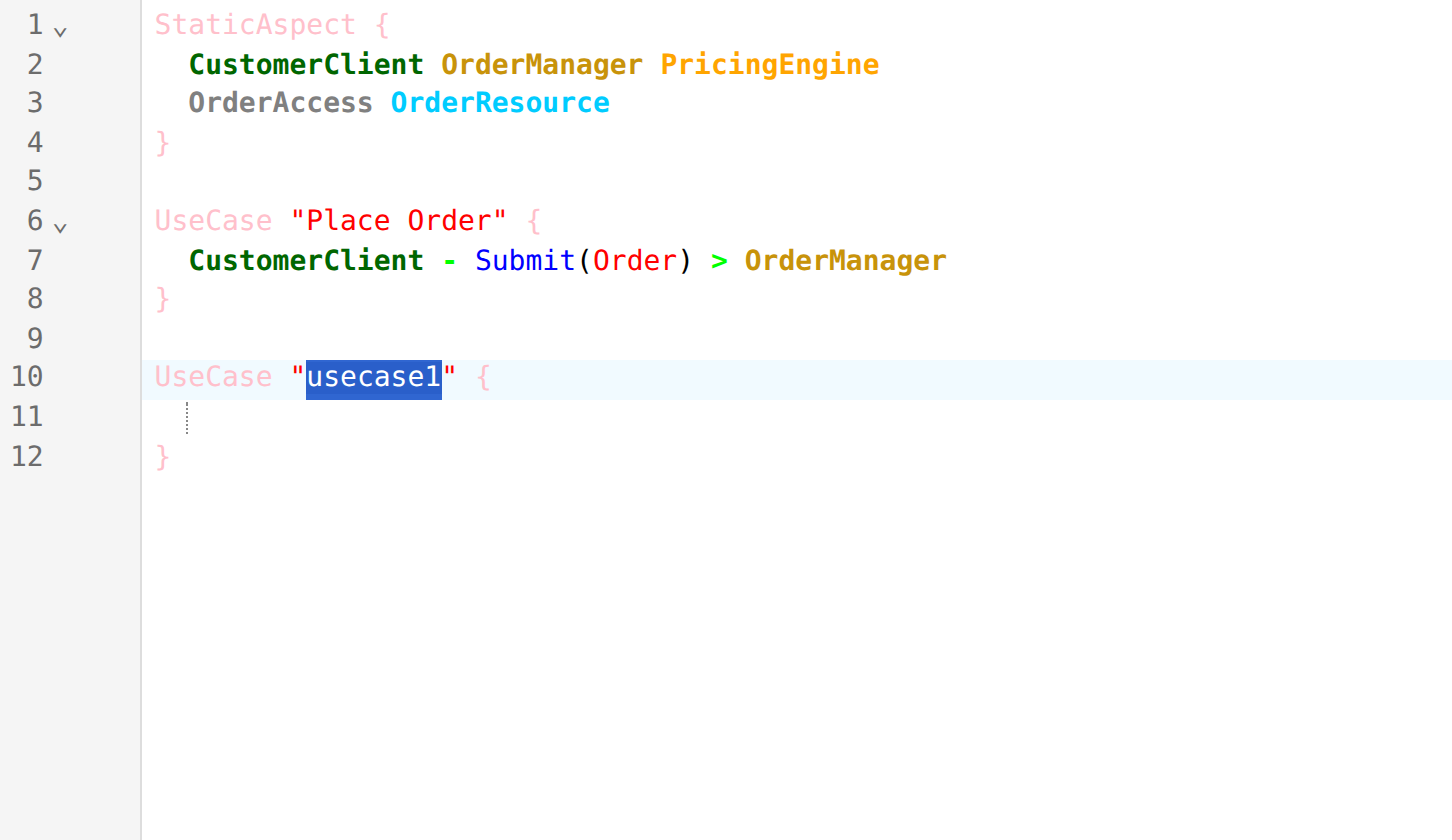
A block suggestion inserts a template with the block name selected. Type the name, then Tab goes to the next placeholder.
Suggestions
The menu offers only what fits where the caret is.
Between blocks
StaticAspect, UseCase, Activity, Flow, Statechart, DTO, DTO : Base, Doc, Identifier, Value, External, External : Facet, External:e and Section. Typing narrows the list, so Us leaves UseCase.
StaticAspect
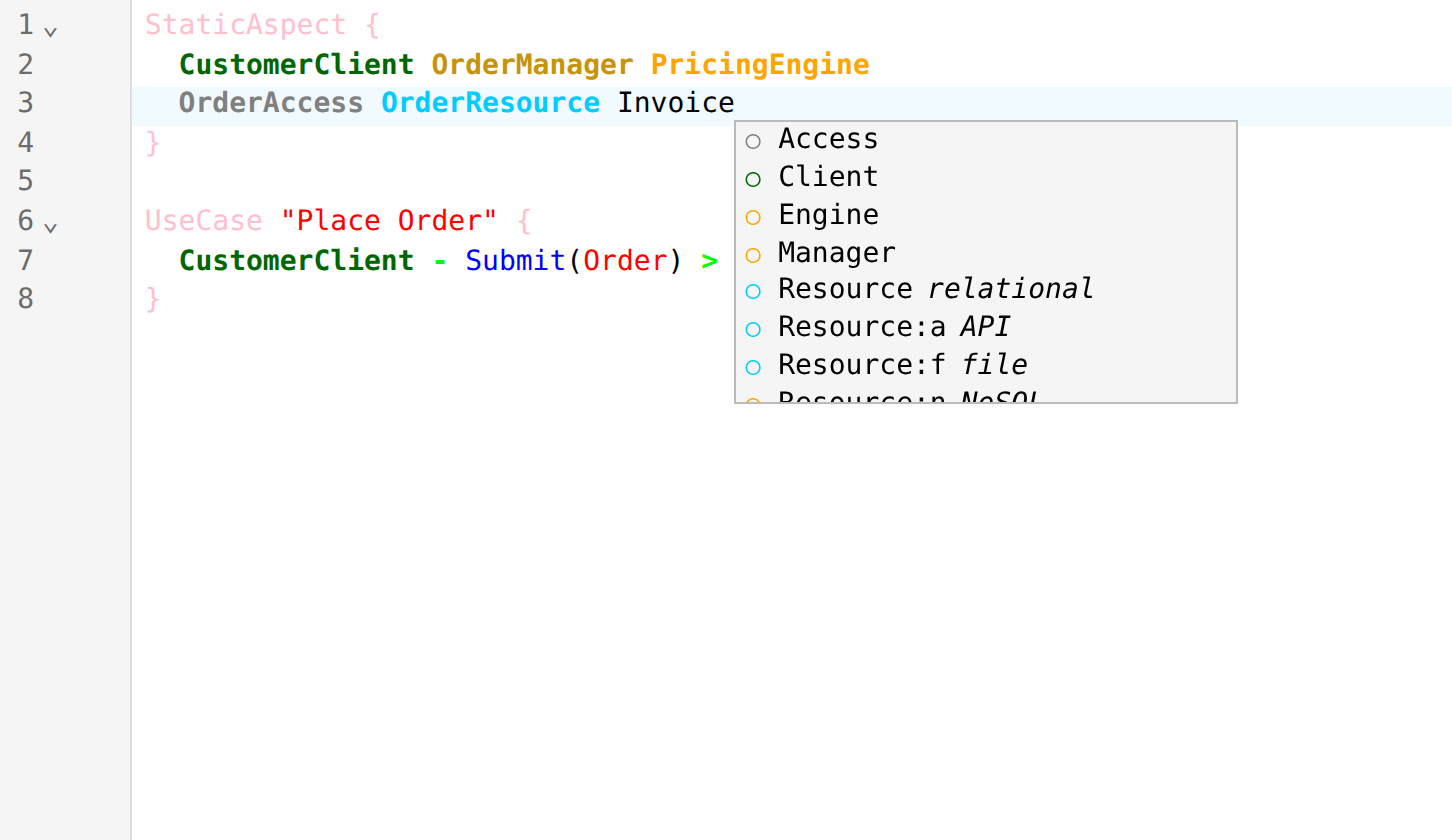
After a name, the component types. A capital letter narrows the list, so OrderM offers Manager. For a resource, Resource, Resource:a, Resource:f and Resource:n.
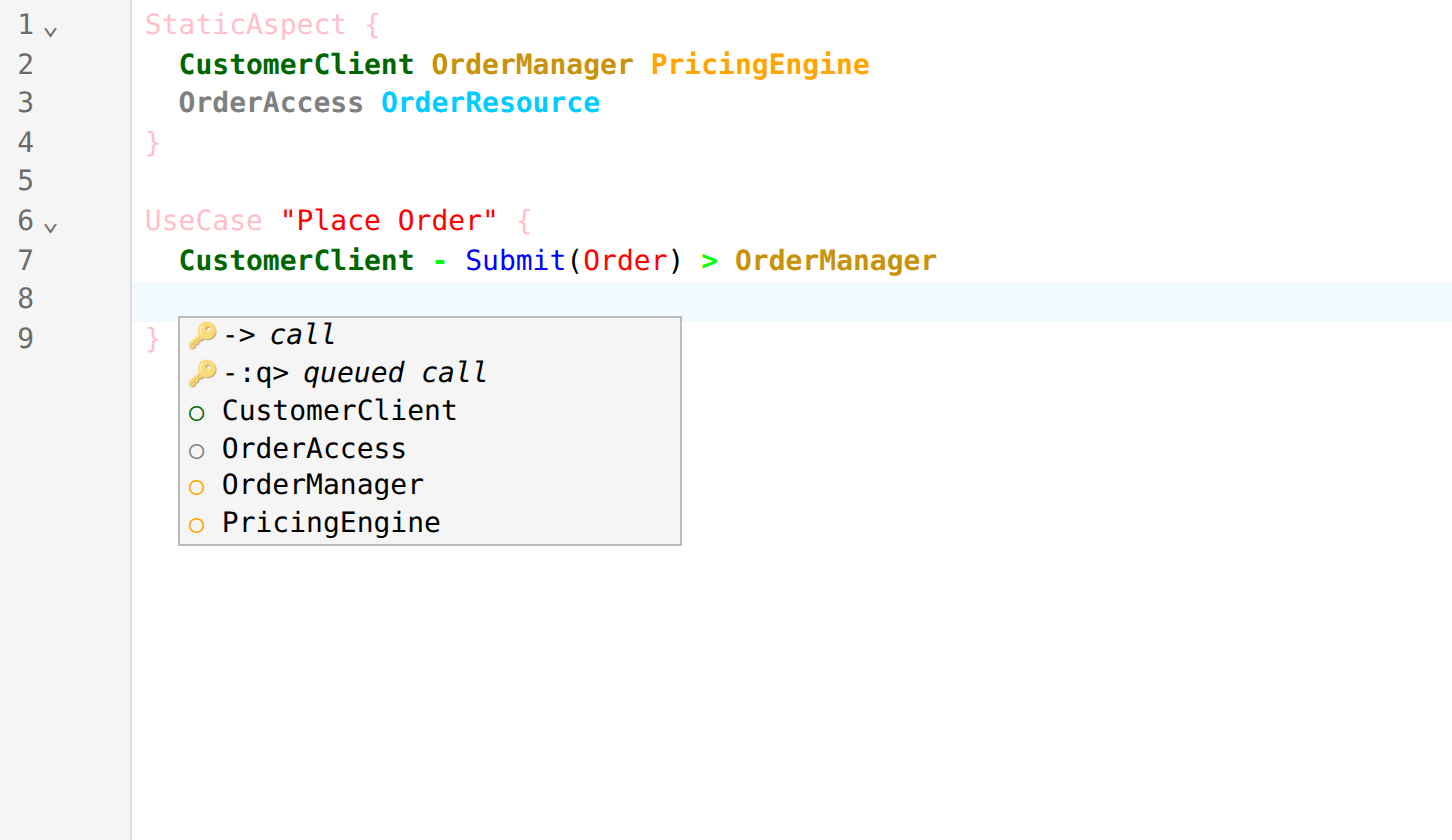
UseCase
| Caret | Suggestions |
|---|---|
| Start of an empty use case | Clients and utilities |
| After a component | ->, then the components. After a manager, also -:q> |
| After an arrow | The components that the caller may call |
Between - and > | The facets of the target, and :a (async) and :q (queued). With no facet yet, ITarget and Operation() |
| After a facet | The operations of the facet, or Operation() |
The components after an arrow follow the layer rules. A component that is not offered would break one.
| Caller | May call |
|---|---|
| Client | Manager, Utility |
| Manager | Engine, Access, Utility. Another Manager only through -:a> or -:q> |
| Engine | Access, Utility |
| Access | Resource |
| Utility | Manager, Engine, Access, Utility |
DTO
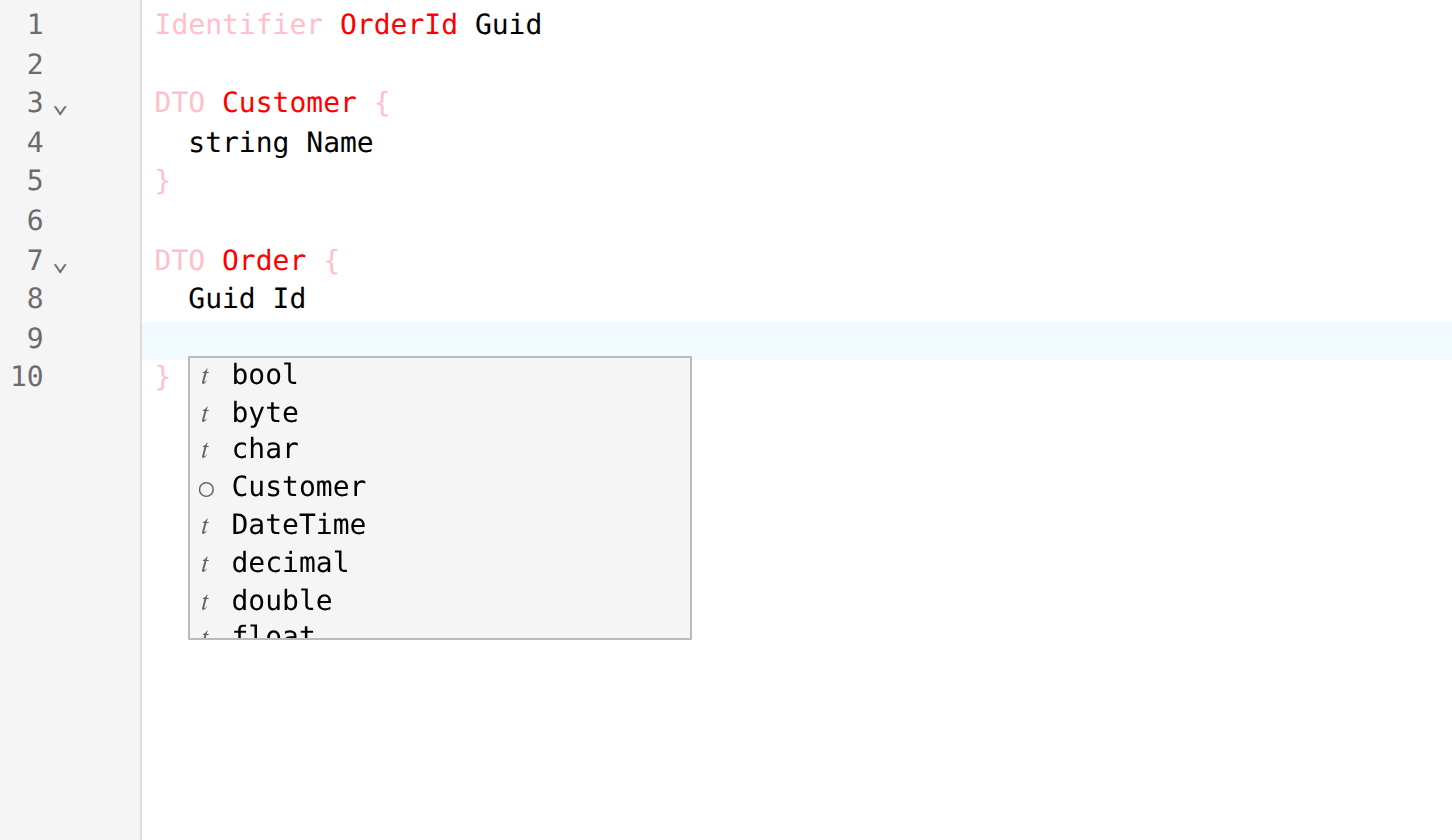
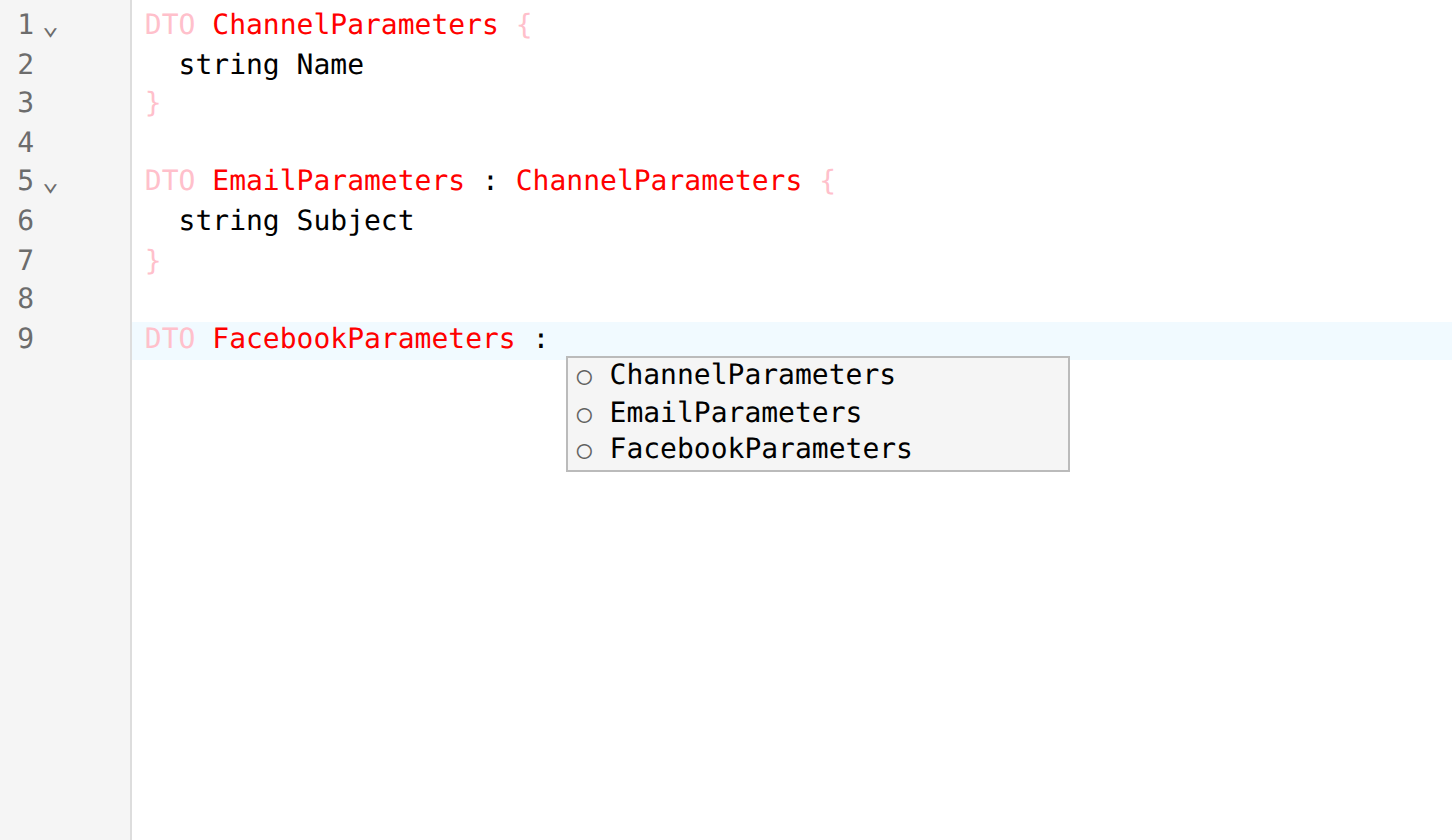
| Caret | Suggestions |
|---|---|
After DTO | The request and response types that your calls use and that nothing declares yet |
| Start of a property line | Primitives, your Identifier, Value, DTO and External types, Uri, DateTime and object. Add [] or <…> yourself |
After : in the header | Your DTOs and External types, types whose name ends in Base, and the base the generator makes when one operation takes several DTOs: {Operation}RequestBase or {Operation}ResponseBase |
Identifier and Value
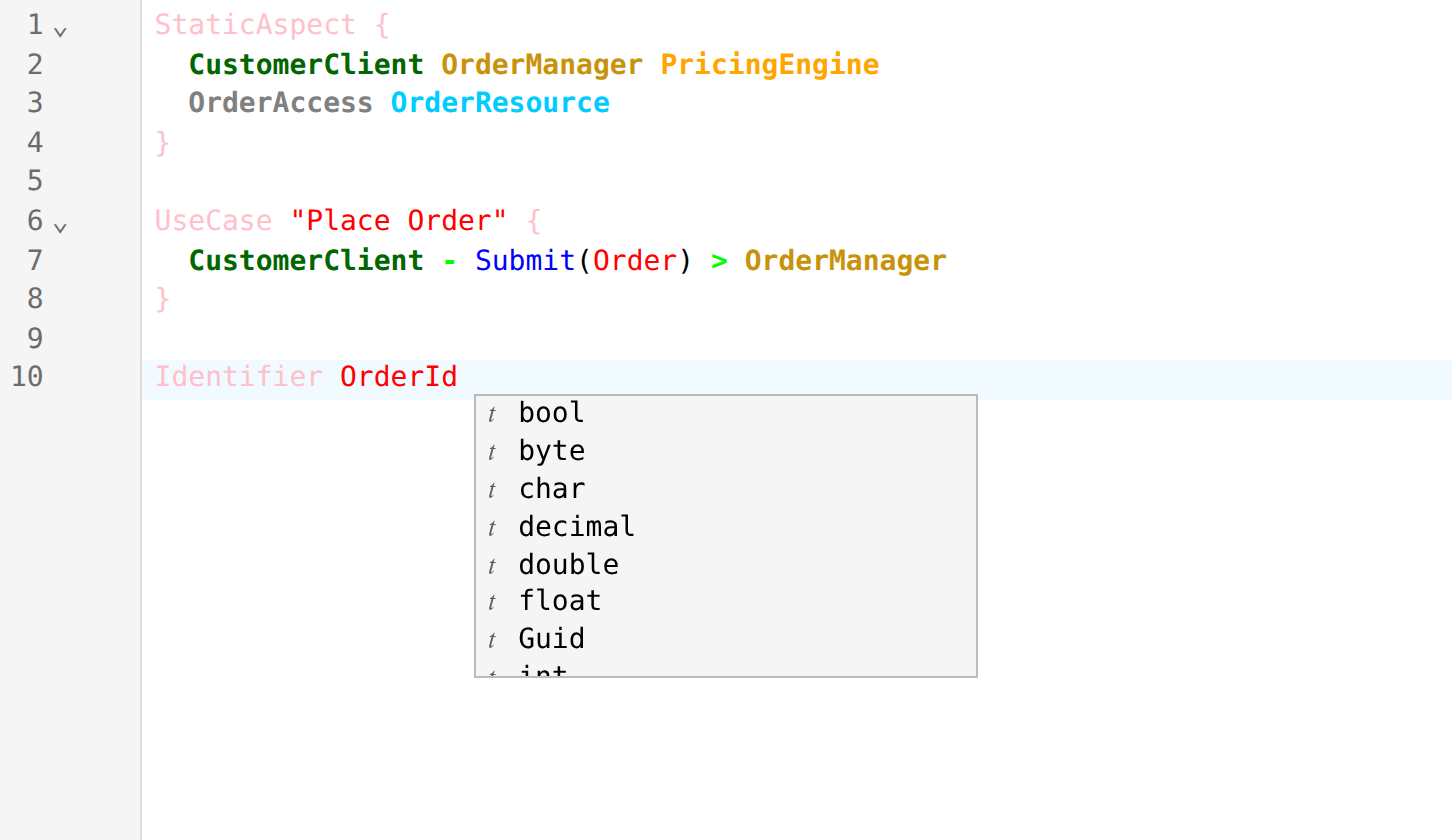
After the name, the primitive types: bool, byte, sbyte, char, decimal, double, float, int, uint, long, ulong, short, ushort, string, Guid.
External
Each slot of an External line offers your facets and type names. Types that you use and have not declared come first, marked not declared. External:e offers event facets only.
Flow
Until the flow has a lane, only lanes: @participant and the lanes of your other flows. After @, lane names.
On a new line, the steps: task, (Start), (End), send >>, receive <<, timer <T and <decision>. After a name, each kind of step with that name.
Statechart
After Statechart, the services that can own a chart: managers, engines, accesses and utilities.
On a new line in the body: a state, a state with a body, a final state, a transition, a transition with a guard, ->, a state with a call, -!>, >> and ^. A manager chart also gets a timeout, and Session at the top of the chart.
| Caret | Suggestions |
|---|---|
After > of a transition | The chart's states |
Between - and > | The events of the chart |
After / on a state | The calls of the chart |
Inside [ | The guards of the chart |
After -<T | The timeouts of the chart |
After >> | The actions of the chart, then your DTOs |
After ^ | The events of the chart |
After : on a state | :p, :f, :h, :h* |
After Session | Your DTOs, then a DTO's properties after . |
Messages
The editor underlines a problem as you type. Hover over the underline to read the message. Ctrl+Shift+M lists all messages below the editor, and the Issues panel lists the messages with the tags.
| Message | Cause | Fix |
|---|---|---|
Syntax Error (red) | The parser cannot read the line and drops everything after the line | Fix the first syntax error first |
Component '…' has not been defined | A use case names a component that no StaticAspect declares | Declare the component, or correct the spelling |
A manager cannot call a resource directly | Only an access calls a resource. The call is not in the diagram | Send the call through an access |
This call detail is ignored | An access reads or writes a resource with no operation | Remove the detail from that call |
A synchronous manager-to-manager call isn't represented | A manager calls a manager only async or queued | Use -:a> or -:q> |
… conflicting request parameters across use cases | One operation has a different number or order of parameters in two use cases | Write the parameters the same way in each use case |
… mixes value and reference types | Refer to Mixed value and reference types | |
DTO '…' is used polymorphically by … | The DTO is one of many types in two operations of the same component, and each operation makes a separate base class | Use a different type, or declare a common base |
'…Base' is generated for … but DTO '…' declares base … | The DTO declares a base, so the DTO cannot also get the base that the operation makes | Declare a common base |
Used directly in a call, abstract will be suppressed. | An abstract DTO is the request or response of a call, so the generator makes the DTO as a normal class | Remove :a, or call with a DTO that inherits from the abstract DTO |
Mixed value and reference types
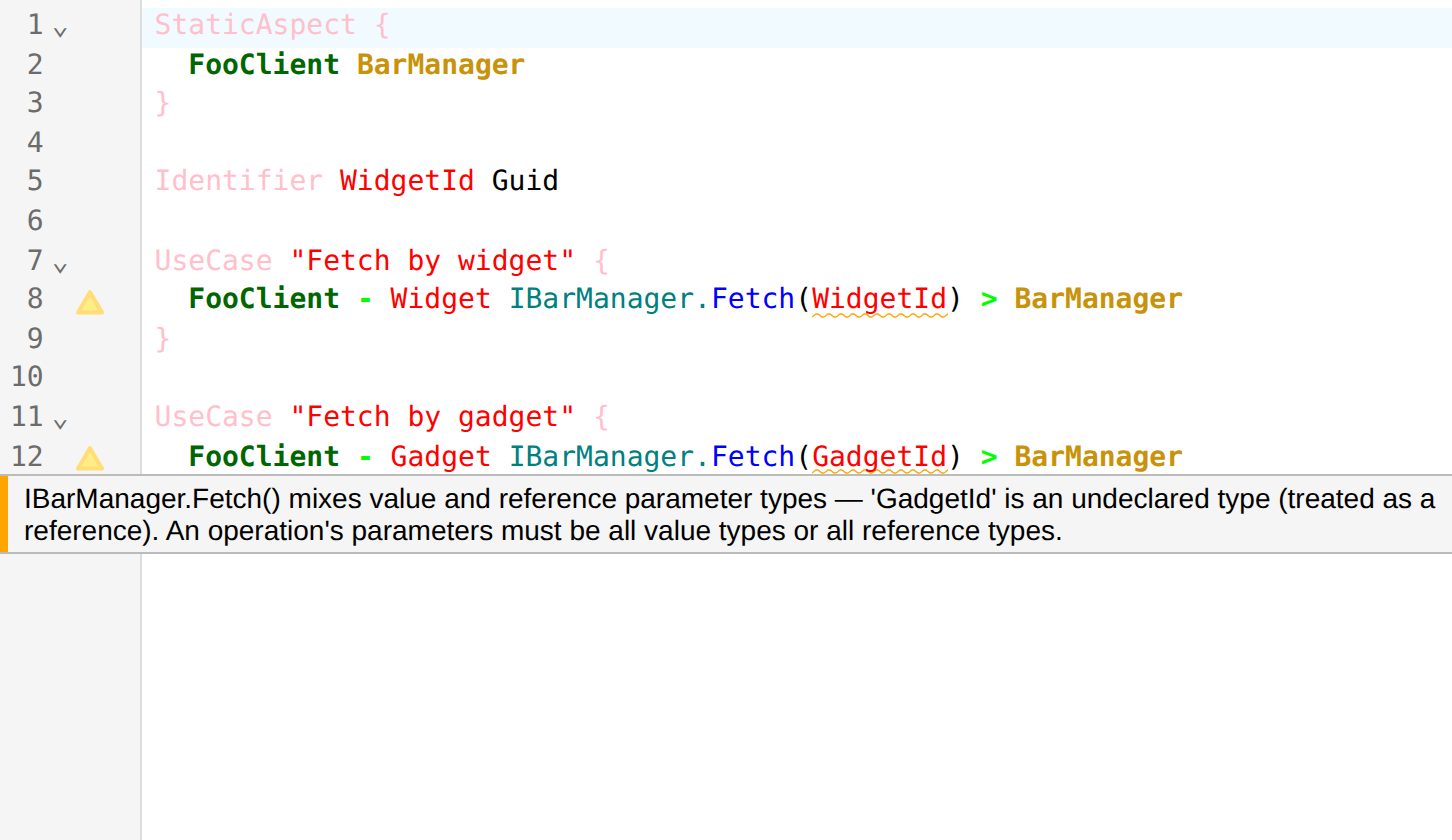
Every call to one operation must pass all value types (a primitive, Identifier or Value) or all reference types (a DTO). The same is true for the responses of the operation.
A type that nothing declares counts as a reference type. So the usual cause is a misspelt name or a missing Identifier. Below, WidgetId is declared and GadgetId is not.
Permissive and Strict
The Issues panel starts on Permissive. Strict also reports each DTO property, request type and response type that has no definition. The generator makes those as empty classes.
Tags
A tag is a word of two or more capital letters and a colon, for example TODO: or REVIEW:, in a comment or in Markdown. The Issues panel gives each tag a tab.
Keys
All navigation keys start with Ctrl+K. On macOS Cmd works too.
Bookmarks
| Keys | Action |
|---|---|
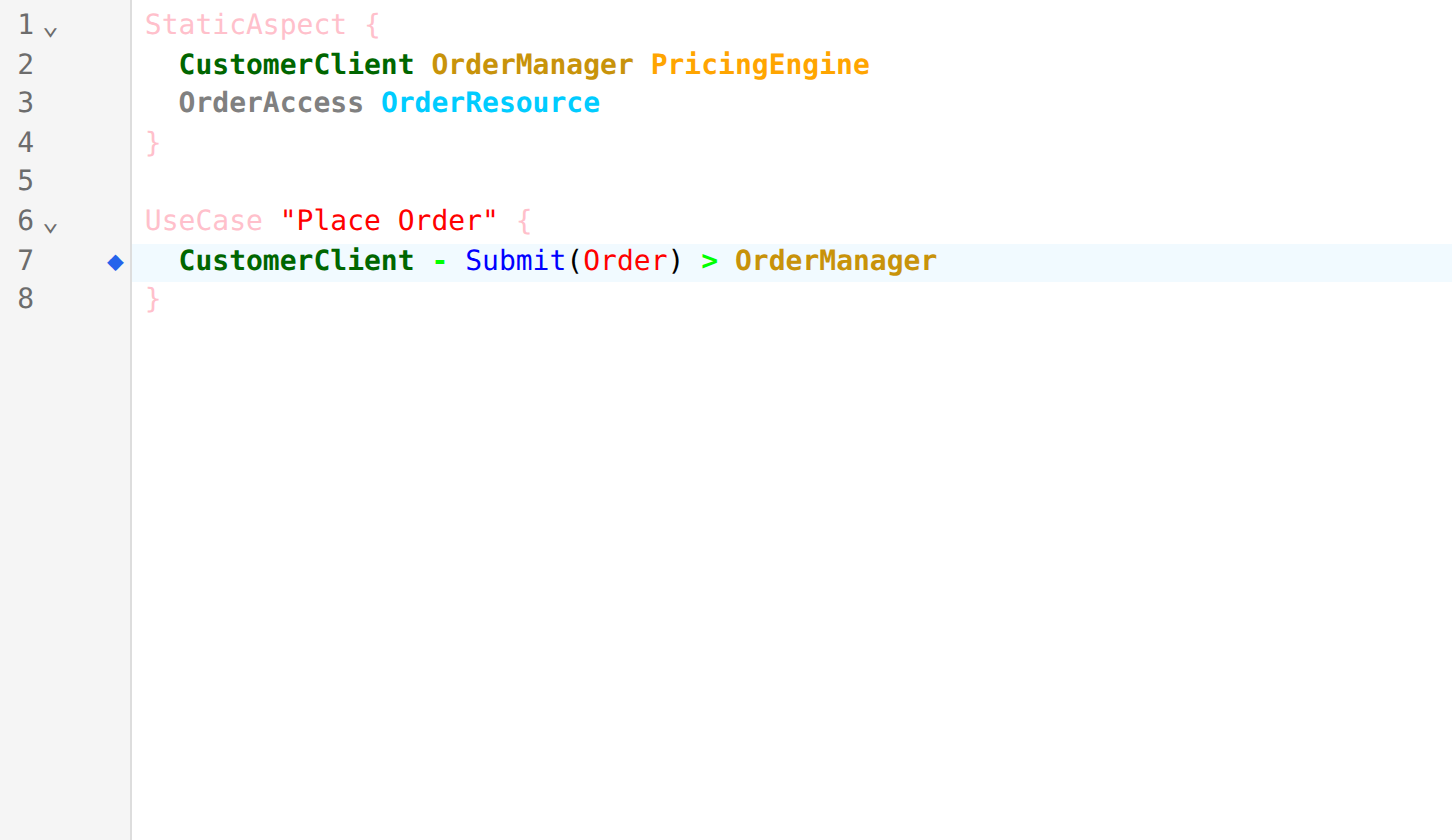
| Ctrl+K Ctrl+K | Add or remove a bookmark on the current line |
| Ctrl+K Ctrl+N | Next bookmark |
| Ctrl+K Ctrl+P | Previous bookmark |
| Ctrl+K Ctrl+L | Clear all bookmarks |
Sections and blocks
The second key needs no Ctrl.
| Keys | Action |
|---|---|
| Ctrl+K ] | Next section |
| Ctrl+K [ | Previous section |
| Ctrl+K . | Next block (UseCase, DTO, …) in the section |
| Ctrl+K , | Previous block in the section |
Blocks outside any section count as one group, before the first section.
Colours
The syntax colours are set in Editor Settings.