
How-to
Each guide here solves one problem. If you are new to MethodSketch, start with the Tutorial.
Find out what is wrong with a sketch
The editor underlines each problem as you type. To see all problems at once:
- Press Ctrl+Shift+M (Cmd+Shift+M on macOS). The problems show below the editor.
- Fix the first syntax error first. The parser stops at that error, so the problems after the error can be false.
- Iterate.
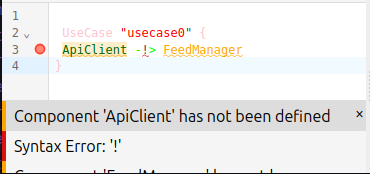
The Editor page says what each message means and what to do.
Find out why a call is missing from a diagram
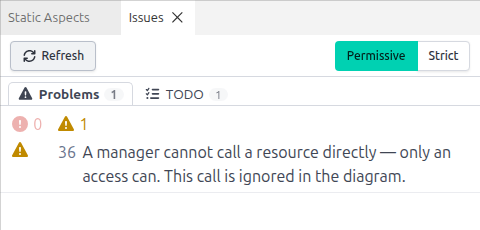
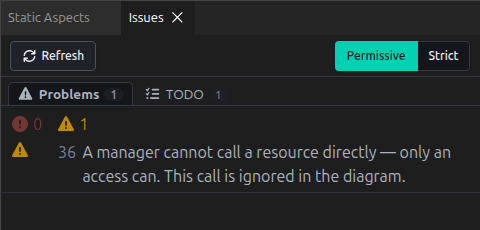
The pad leaves out a call that breaks a layer rule, for example a manager that calls a resource.
- Open Issues from Editor ▸ Reopen panel.
- Find the message for the call and click the message. The editor goes to the line.
- Change the call to follow the rules. For a manager that calls a resource, send the call through an access.
- Iterate.
A synchronous call from a manager to a manager is also left out. Change the arrow to -:a> or -:q>.
Check a sketch before you generate
The generator makes a type that has no definition as an empty class. Find those types before you generate.
- Open Issues from Editor ▸ Reopen panel.
- Click Strict. Issues now also lists each DTO property, request type and response type that has no definition.
- Declare each type as a
DTO, anIdentifier, aValueor anExternal. - Iterate until the list is empty.
Review the contracts of a design
- Iterate.
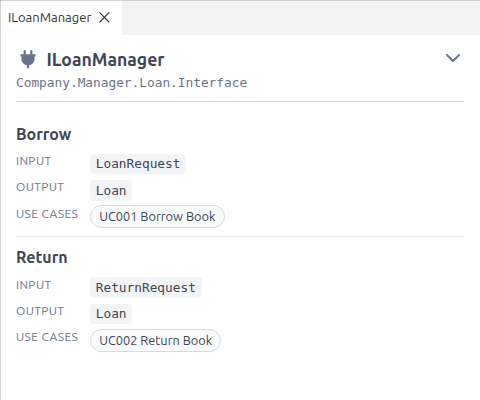
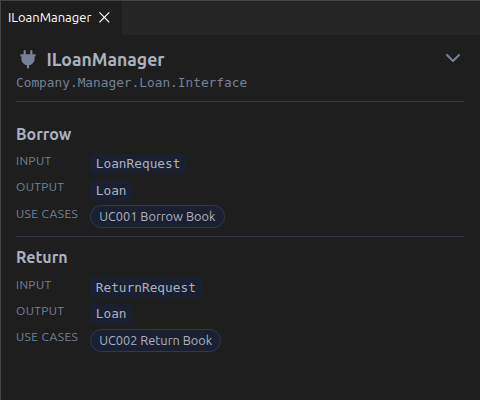
- In the Navigation panel, open Service Contracts and click an interface. The interface contract opens in a tab.
- For each operation, read the input, the output and the use cases that call the operation. If two use cases call the same operation, check that the two use cases agree.
- To see a DTO or a use case, click the name.
The DTO Flow of a use case shows which DTO goes over each call, with the DTO properties. Use the DTO Flow to find a DTO that carries more than the call needs.
Find your way in a long sketch
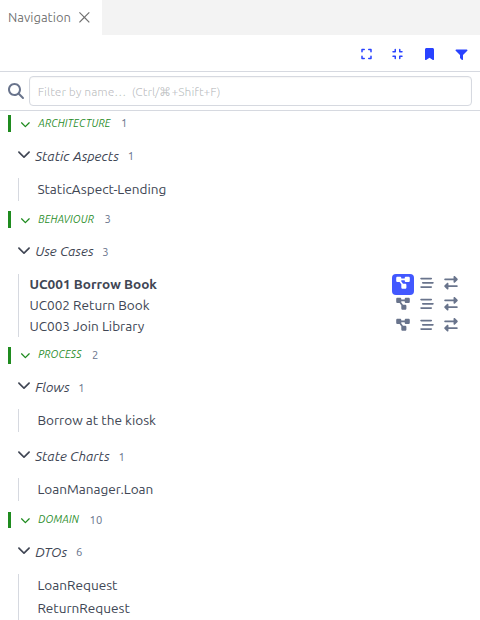
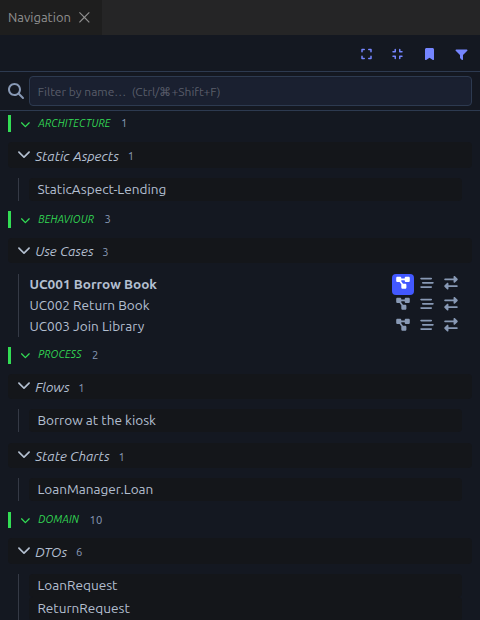
- Put each group of blocks in a section. The Navigation panel groups the blocks by section, and you can fold each section in the editor.
- Press Ctrl+Shift+F and type part of a name.
u3afindsUC Memb-03a. Press Enter to open the match. - Press Ctrl+K Ctrl+K on a line you come back to. Click the bookmark button in the Navigation panel to show only those items.
- Turn on Editor ▸ Sync. The diagram then follows the caret, and the caret follows the diagram.
- If you read sequences more than call chains, set Editor ▸ Default to Sequence.
Get the diagrams ready for a design review
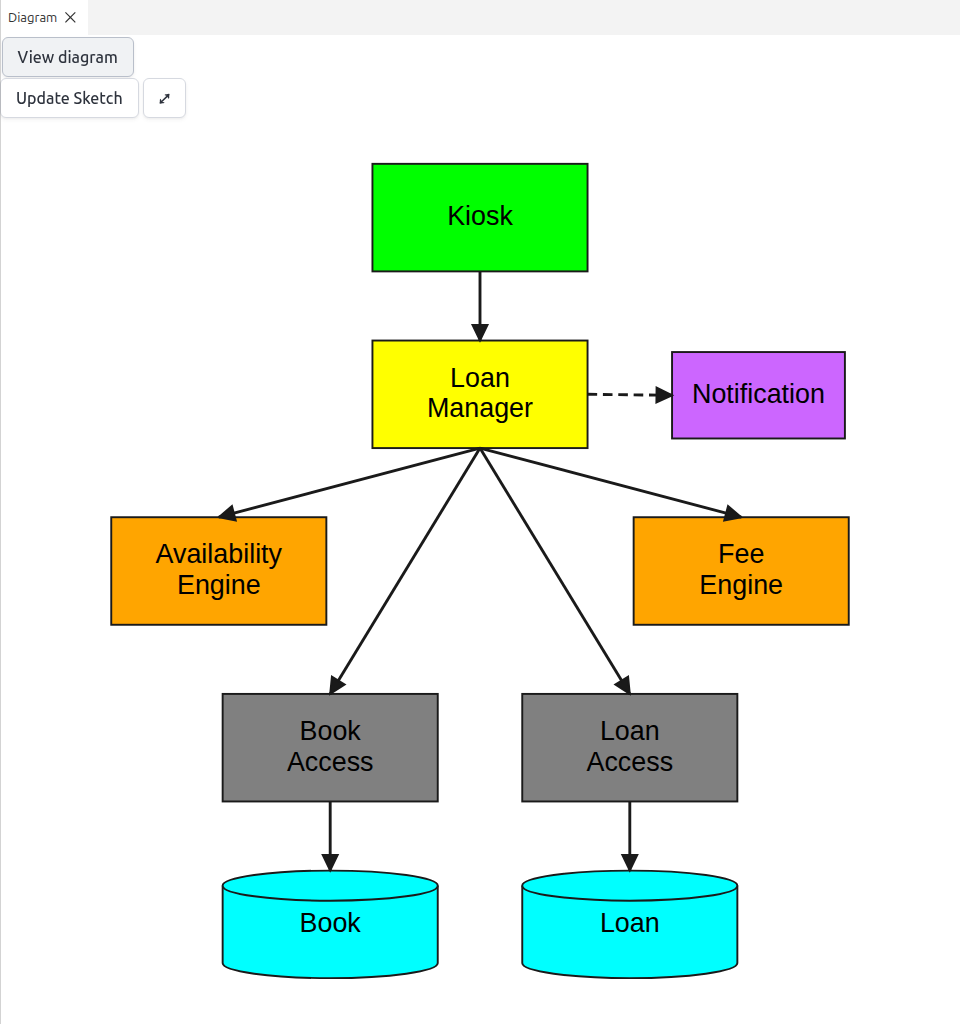
- Open each diagram that you will talk about in a separate tab. Double click the diagram button of a use case. Drag the tab next to the Diagram panel to see two diagrams side by side.
- If a diagram is hard to read, select the diagram and click Edit. Move the boxes, then click Update Sketch. Edit works for static aspects, call chains and flows.
- For your own colours, open Sketch Settings from Editor ▸ Reopen panel. Under Diagram styling, select Custom. Click Save and iterate.
- Add an annotation to each use case that needs a note. The annotation shows next to the diagram.
- To take the diagrams away, select Tasks ▸ Export Images. You get all diagrams in a zip file.
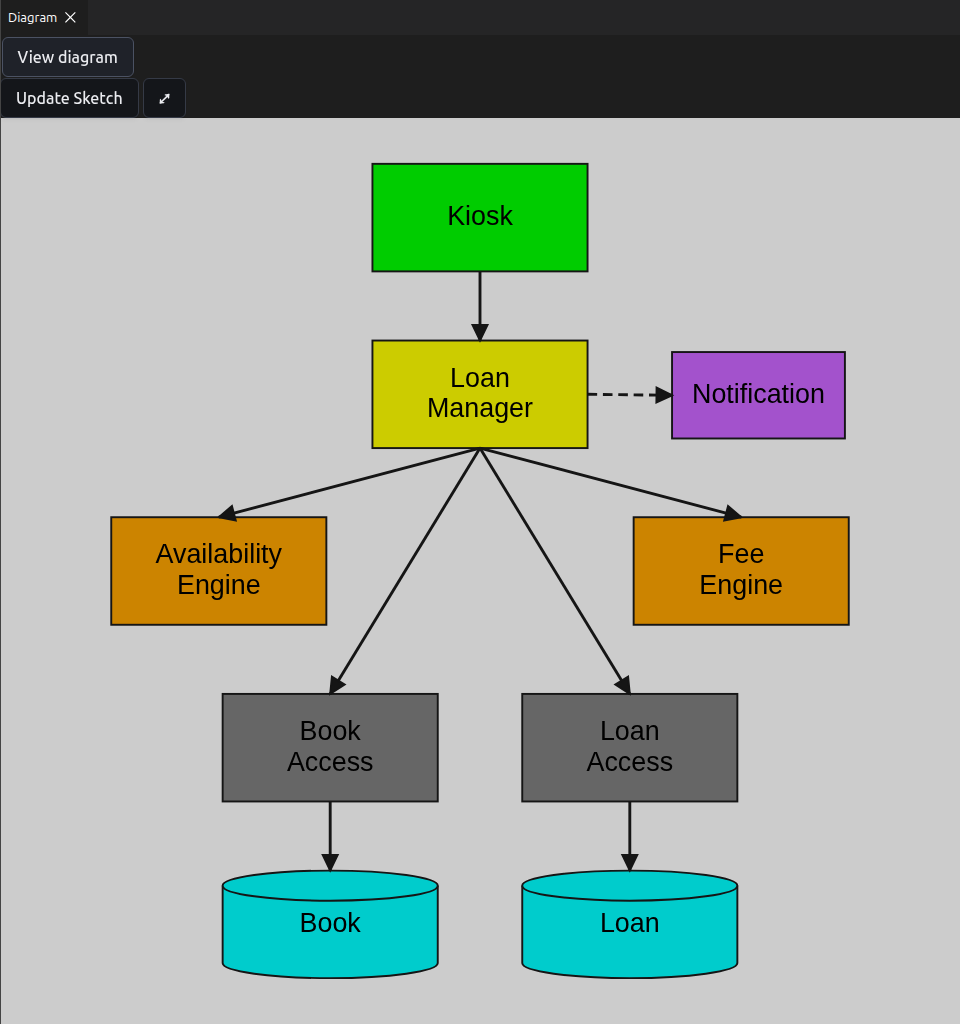
Generate the solution
Open Sketch Settings from Editor ▸ Reopen panel.
Set Company. The company name becomes the solution name and the root namespace.
Select the Script shell for your computer.
Click Save.
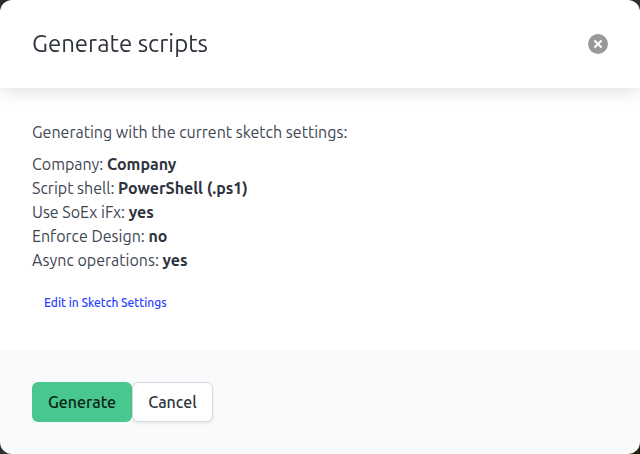
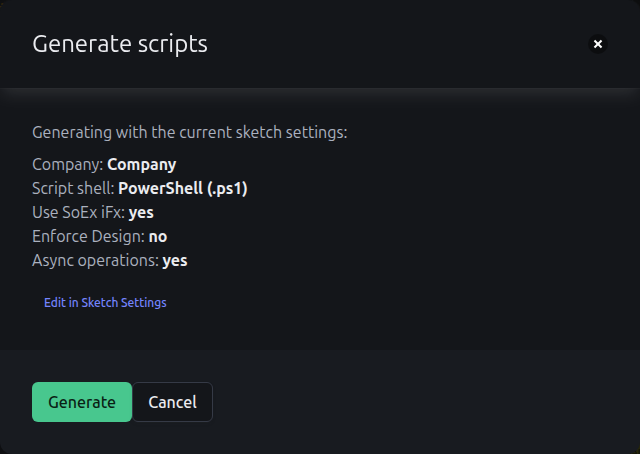
Select Tasks ▸ Generate. Check the settings in the dialog, then click Generate.
Download the script into the folder for the solution.
The first time, install the .NET SDK and the project templates:
dotnet new install SoEx.Method.TemplatesRun the script:
powershell.exe -executionpolicy bypass .\Generate.ps1or
sh Generate.sh
To have the build check the code against the design, tick Enforce Design before you generate. Your subscription must include Enforce Design.
Change the design after you generate
- Change the sketch and iterate.
- Generate again.
- Run the new script in the same folder.
The script adds the new projects and leaves the others.
Generate a manager as a utility
- Open Sketch Settings from Editor ▸ Reopen panel.
- Under Generation, find the manager. In Emit as, select Utility.
- Click Save and generate.
The diagrams still show the component as a manager.
Go back to an earlier version
Every iterate saves a version.
- Select Tasks ▸ History.
- Click a version. The version opens read-only.
- To copy a part back, select the text and copy.
- Select Tasks ▸ Edit most recent, and paste.
Set up the MCP server
Connect your own AI agent to your sketches. There are two endpoints:
| Endpoint | Use the endpoint to |
|---|---|
https://api.methodsketch.app/mcp/design | Create and edit sketches. Changes appear live in the pad |
https://api.methodsketch.app/mcp/brief | Read a sketch so the agent can implement the design. Read-only |
Add one or both to your agent as a remote (HTTP) MCP server. The agent needs only the URL. The first time the agent connects, your browser opens and you sign in with your MethodSketch account.
Point the agent at a sketch
Every tool works on a sketch id. On the design endpoint the agent can list your organisations and sketches, or create a new sketch, so the agent finds the id.
Use the brief endpoint for a subagent that implements the design. The design agent gives the sketch id to the subagent. If the sketch belongs to an organisation, the design agent also gives the organisation id.
To give the id yourself, copy the id from the address of the sketch in the pad:
| Sketch | Address |
|---|---|
| Personal | https://pad.methodsketch.app/sketch/<sketch id> |
| Organisation | https://pad.methodsketch.app/<organisation id>/sketch/<sketch id> |
Review changes from an AI agent
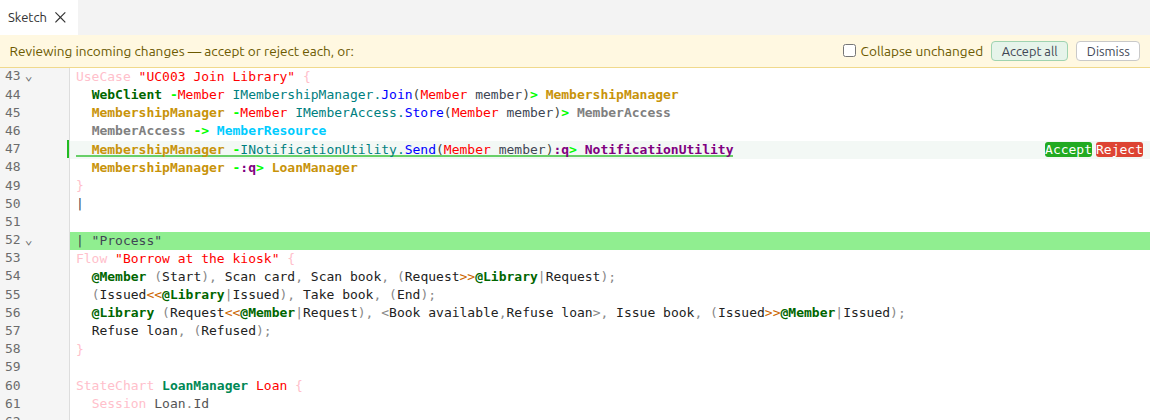
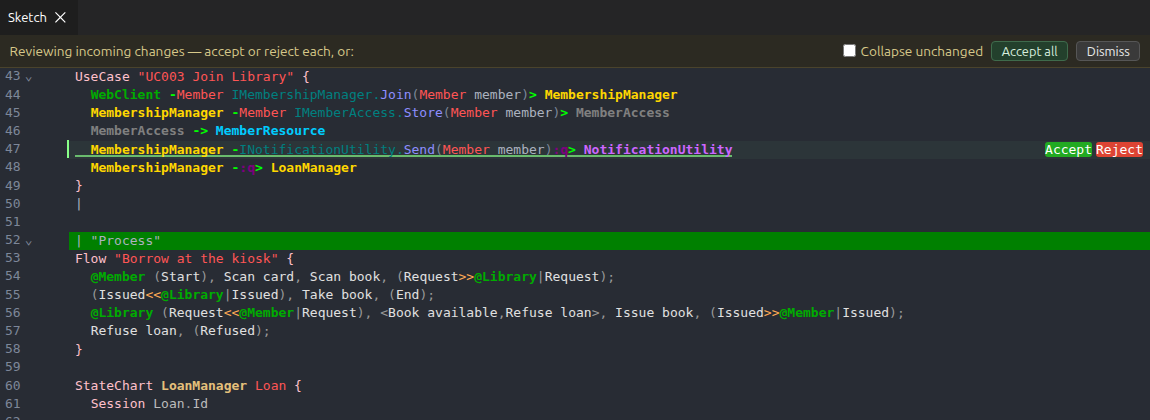
When an agent changes the sketch, the editor shows each change in place. Added lines have a highlight. Removed lines show as blocks between the lines.
- Read each change.
- Click Accept or Reject on each change. Or click Accept all.
- When no changes are left, the pad iterates.
To go back to your own text, click Dismiss.
If you have edits that you did not iterate, the pad shows a banner instead. Click Load latest to see the changes.
Use the VS Code extension
- Install the extension from the Visual Studio Marketplace.
- In your folder, create a file
method.sketchthat contains the id of the sketch. - If you do not have the generate script yet, download the script into the folder.
- Create an empty file
method.design. - Open the side bar of the extension.
- Check the sketch id. If the id is wrong, click refresh.
- Click Connect.
While the extension is connected, method.design updates on each iterate. When you click Generate in the pad, the extension downloads the generate script and runs the script.