The Pad
The pad at pad.methodsketch.app is where you write a sketch and see the diagrams. This page describes each part of the pad. For step by step help, refer to the Tutorial and the How-to guides.
Sketch list
Sketches shows your sketches, with a preview and the date of the last change.
| Control | Action |
|---|---|
| Create New | Make a sketch that contains StaticAspect { ApiClient }. The sketch name is the date and time |
| Switch organisation | Show the sketches of an organisation. private shows your own |
Top bar
| Control | Action |
|---|---|
| ← | Go back to the sketch list |
| Iterate | Draw the diagrams and save the sketch as a new version |
| Name box | The sketch name. The next iterate saves the name |
| Editor | The Editor menu |
| Tasks | The Tasks menu |


Ctrl+S also iterates, from all parts of the page. The pad iterates by itself when the sketch opens, after Update Sketch, and after you accept changes from an agent.
If an iterate fails, the pad keeps the last diagrams and shows the error below the top bar.
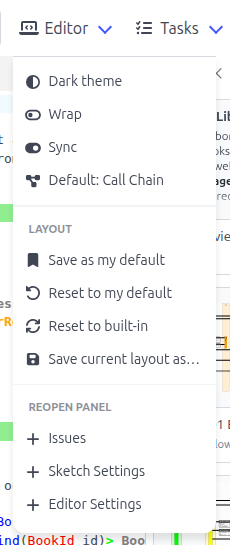
Editor menu
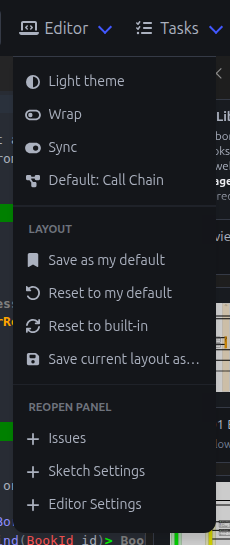
| Item | Action |
|---|---|
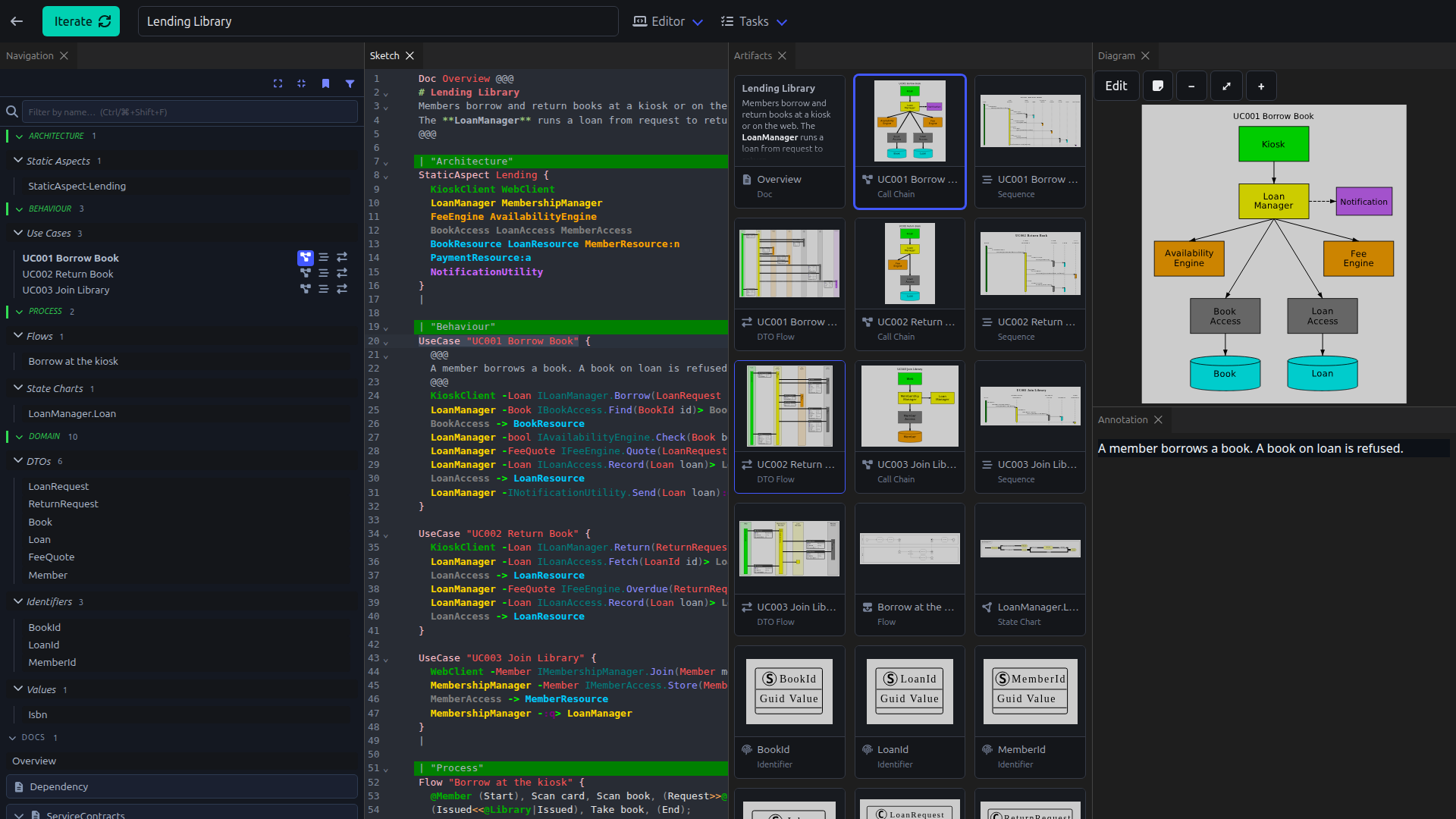
| Dark theme / Light theme | Change the theme |
| Wrap | Wrap long lines in the editor |
| Sync | Keep the editor and the panels on the same item. The diagram follows the caret, and the caret follows the selected diagram |
| Default: Call Chain | The diagram that a use case opens as. Click to change to Sequence, then DTO Flow |
| Save as my default | Keep this layout as your default |
| Reset to my default | Go back to your default layout |
| Reset to built-in | Go back to the first layout of the pad |
| Save current layout as… | Save the layout with a name |
| Saved layouts | Apply a saved layout. × deletes the layout |
| Reopen panel | Open a closed panel, or Issues, Sketch Settings or Editor Settings |
Your browser keeps the layouts. A saved layout works in all sketches.
Tasks menu
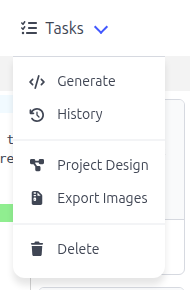
| Item | Action |
|---|---|
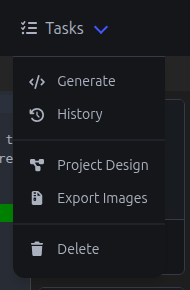
| Generate | Open the Generate dialog |
| History | List the earlier versions of the sketch |
| Edit most recent | Go back to the latest version from an earlier one |
| Project Design | Make the project plan |
| Export Images | Download all diagrams in a zip file |
| Delete | Delete the sketch |
Panels
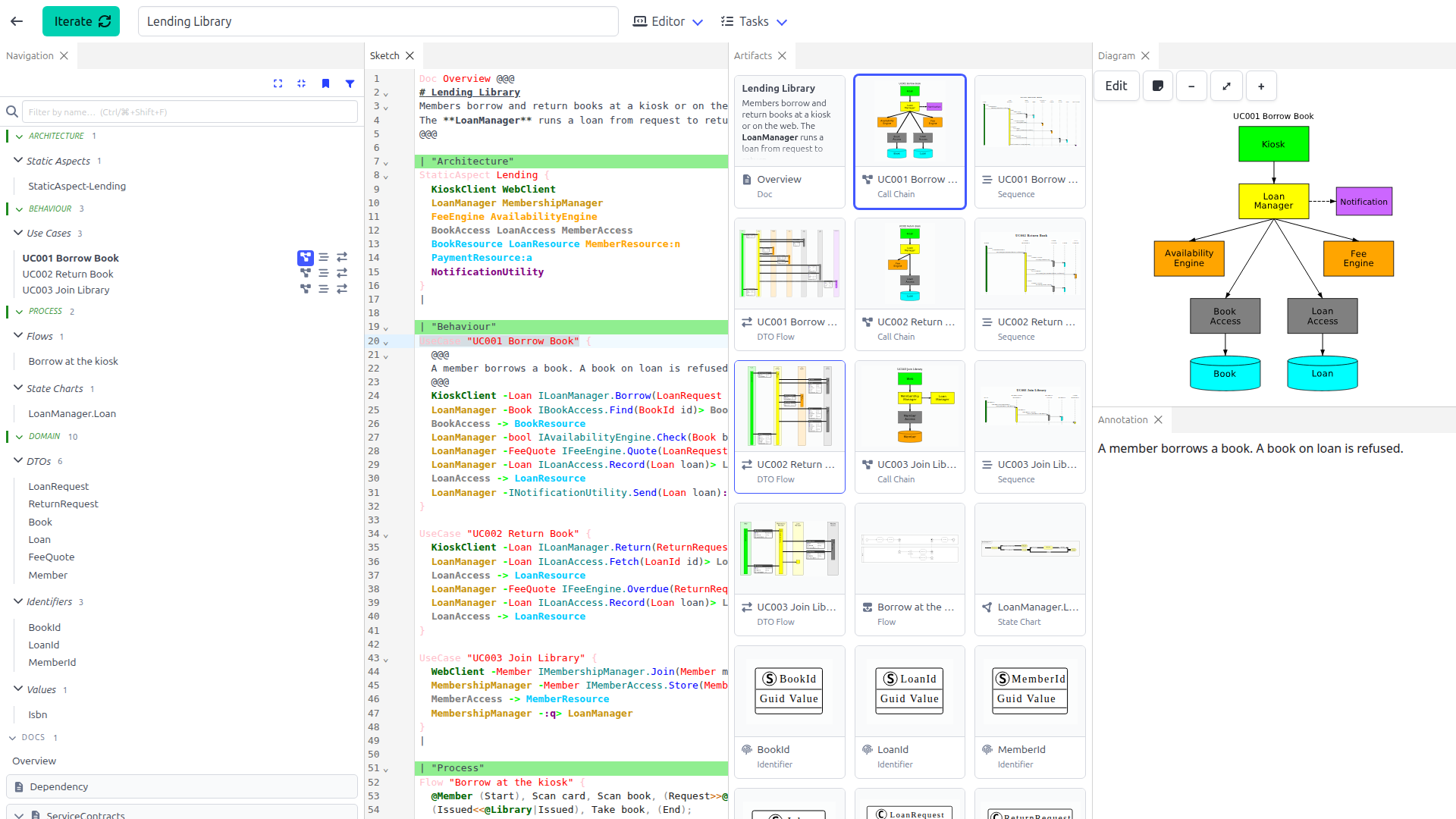
The pad starts with Navigation, Sketch, Artifacts, Static Aspects and Diagram. Drag a tab to move a panel. On a narrow screen the panels show as tabs.
Navigation
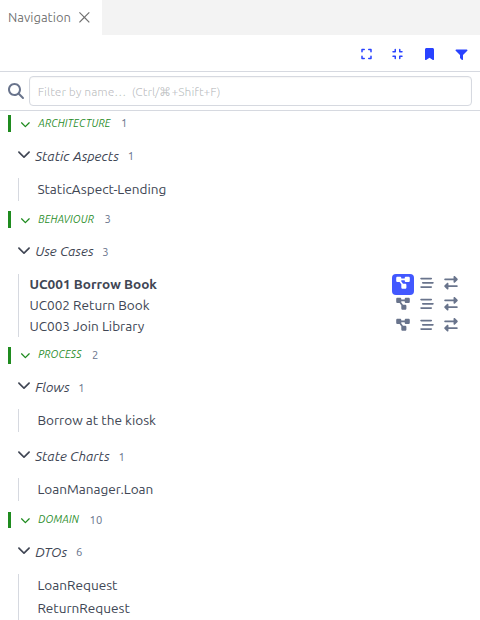
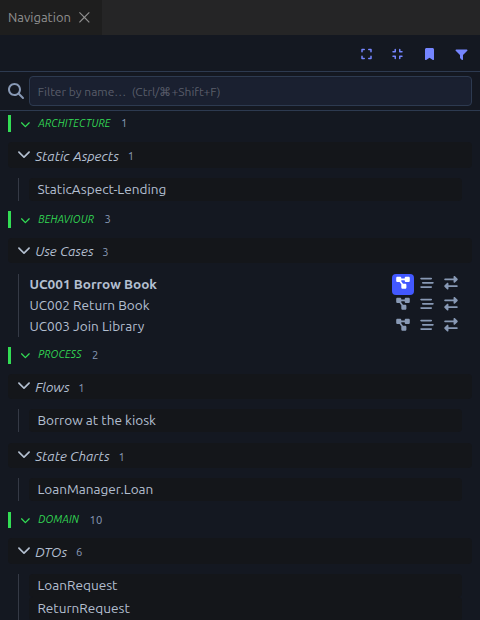
A tree of all items in the sketch, with a group for each type: Static Aspects, Use Cases, DTOs, Identifiers, Values, Flows, Statecharts and Docs. Dependency, Service Contracts and Data Contracts come after the groups. If the sketch has sections, each section is a group with the type groups in it.
| Control | Action |
|---|---|
| Expand all / Collapse all | Open or close all groups |
| Bookmark | Show only the items with a bookmark |
| Filter | Select the types and the sections to show |
| Filter by name | Find an item by part of the item name. u3a finds UC Memb-03a. Ctrl+Shift+F moves to this box |
A use case has a button for each use case diagram: call chain, sequence and DTO flow. The first button is the default view. Under Service Contracts, each interface has a row that opens the interface contract.
Sketch
The editor. Refer to the Editor page.
Artifacts
A card with a small image for each diagram.
Static Aspects
All static aspects, one below the other.
Diagram
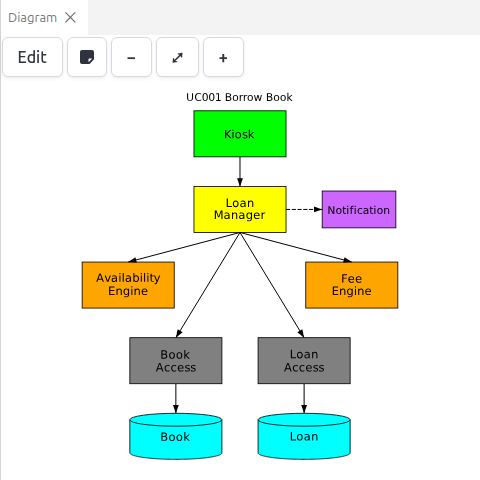
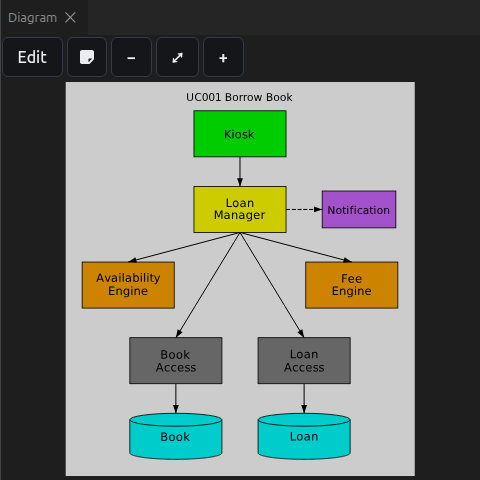
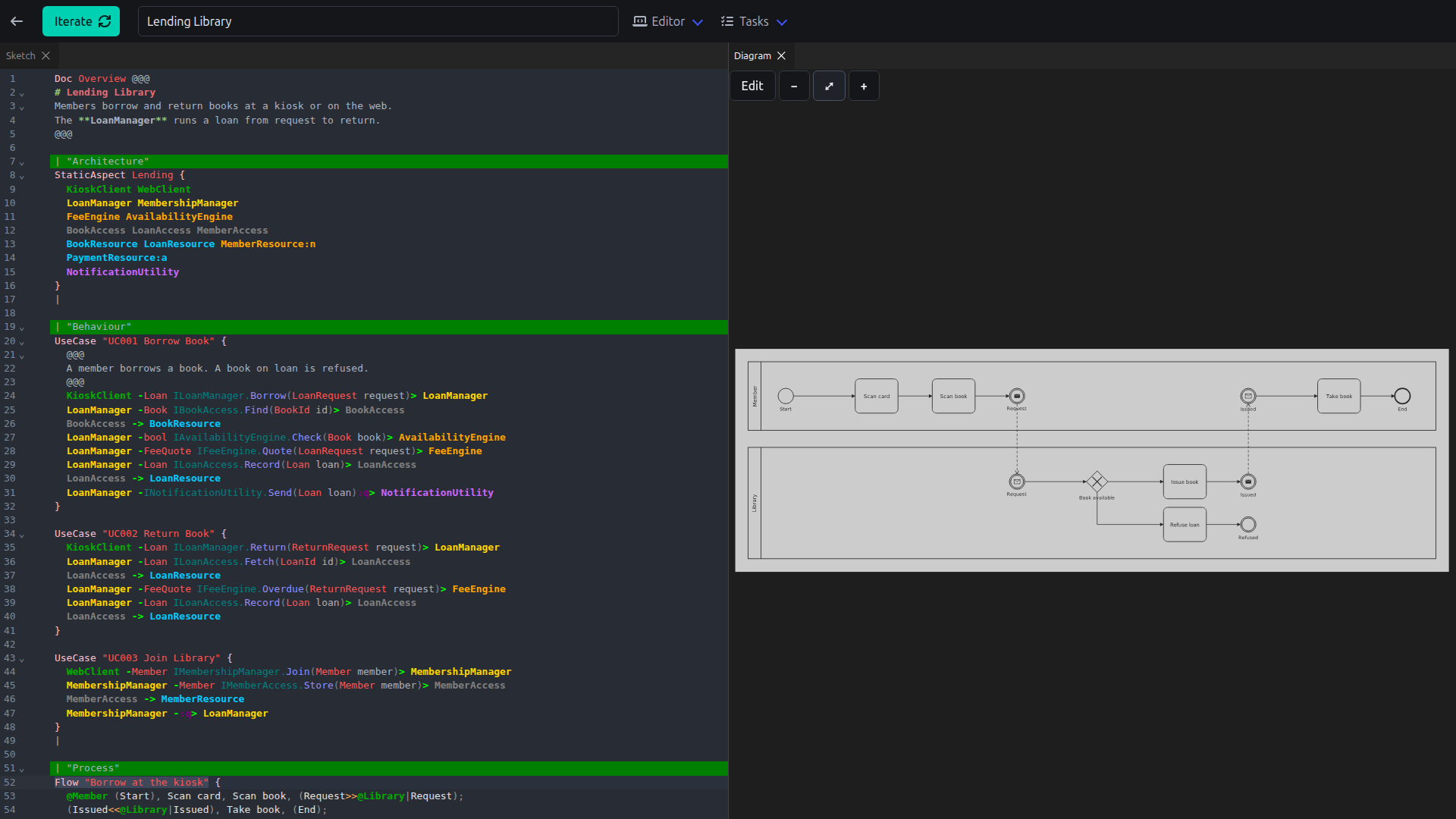
The selected diagram.
| Control | Action |
|---|---|
| Edit | Move the items in a static aspect, call chain or flow |
| Note | Open the annotation in a separate tab |
| − / + | Zoom out and zoom in |
| ⤢ | Fit the diagram to the panel |
The mouse wheel zooms and a drag moves the diagram. On a touch screen, pinch to zoom. The diagram fits the panel until you zoom or move the diagram.
Annotation
The Markdown of the selected item. The panel opens when the item has an annotation and closes when the item has no annotation. The call chain, sequence and DTO flow of a use case share one annotation.
Issues
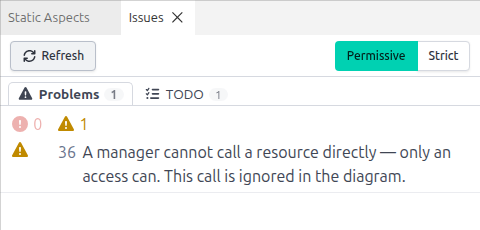
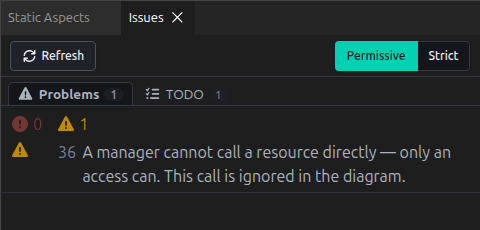
The problems and the tags in the sketch. A click on a problem moves the editor to the line of the problem.
| Control | Action |
|---|---|
| Permissive | Show syntax errors, undefined components and mixed value and reference types |
| Strict | Also show each DTO property, request type and response type that has no definition |
| Refresh | Check the sketch again and read the tags |
A tag is a word of two or more capital letters and a colon, for example TODO:, in a comment or in Markdown. Each tag has a tab. The panel reads tags when you click Refresh and when you iterate.
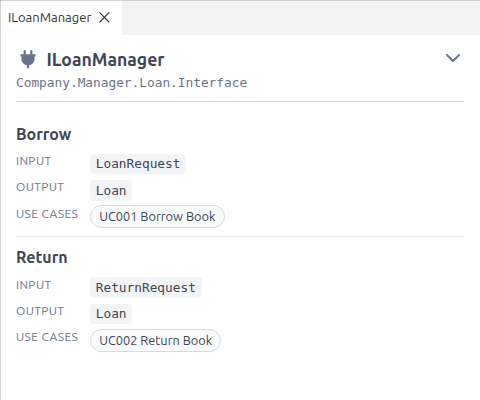
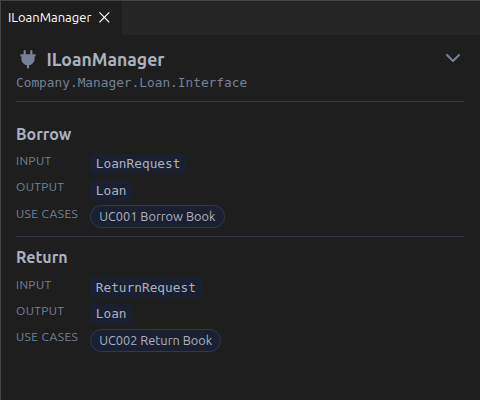
Service contract
One interface, with each operation, the input and output of the operation, and the use cases that call the operation. The chevron shows each operation on one line. A click on a type opens the type diagram. A click on a use case opens the use case.
Sketch Settings and Editor Settings
Refer to Sketch Settings and Editor Settings.
Clicks and tabs
| Action | Result |
|---|---|
| Click an item, a card or a diagram button | The diagram shows in the Diagram panel |
| Double click a diagram button of a use case | The diagram opens in a separate tab |
| Click Note in the Diagram panel | The annotation opens in a separate tab |
| Click an interface | The contract opens in a separate tab |
If a diagram has a separate tab, a click shows that tab. If the Diagram panel is closed, a click opens the Diagram panel. These tabs stay open until you close the tabs. Layouts do not keep these tabs.
Diagrams
| Diagram | From | Shows |
|---|---|---|
| Static Aspect | StaticAspect | Each component in its layer |
| Call Chain | UseCase | The components of the use case and the calls between the components |
| Sequence | UseCase | The calls in order, with the operation of each call |
| DTO Flow | UseCase with call detail | The DTO on each call, with the DTO properties |
| Dependency | All use cases | Which component depends on which |
| DTO, Identifier, Value | DTO, Identifier, Value | The type and the type properties |
| Service Contracts | Call detail | The interfaces and the operations of each interface |
| Data Contracts | Call detail and DTOs | The DTOs of each contract |
| Flow | Flow | A BPMN process with lanes |
| Statechart | StateChart | The states, transitions and raises of a chart |
| Activity | Activity | A PlantUML activity diagram |
| Doc | Doc | Markdown |
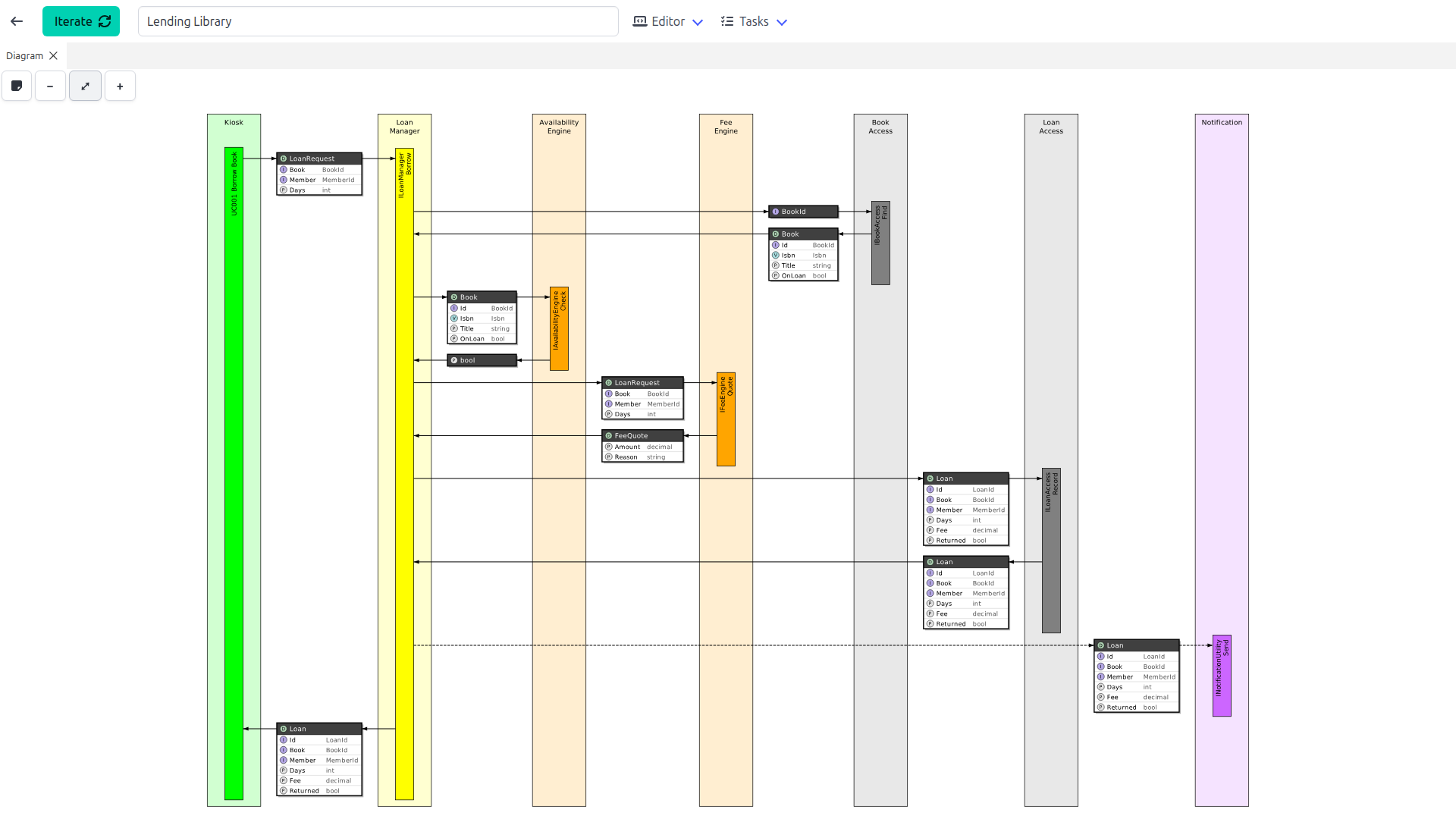
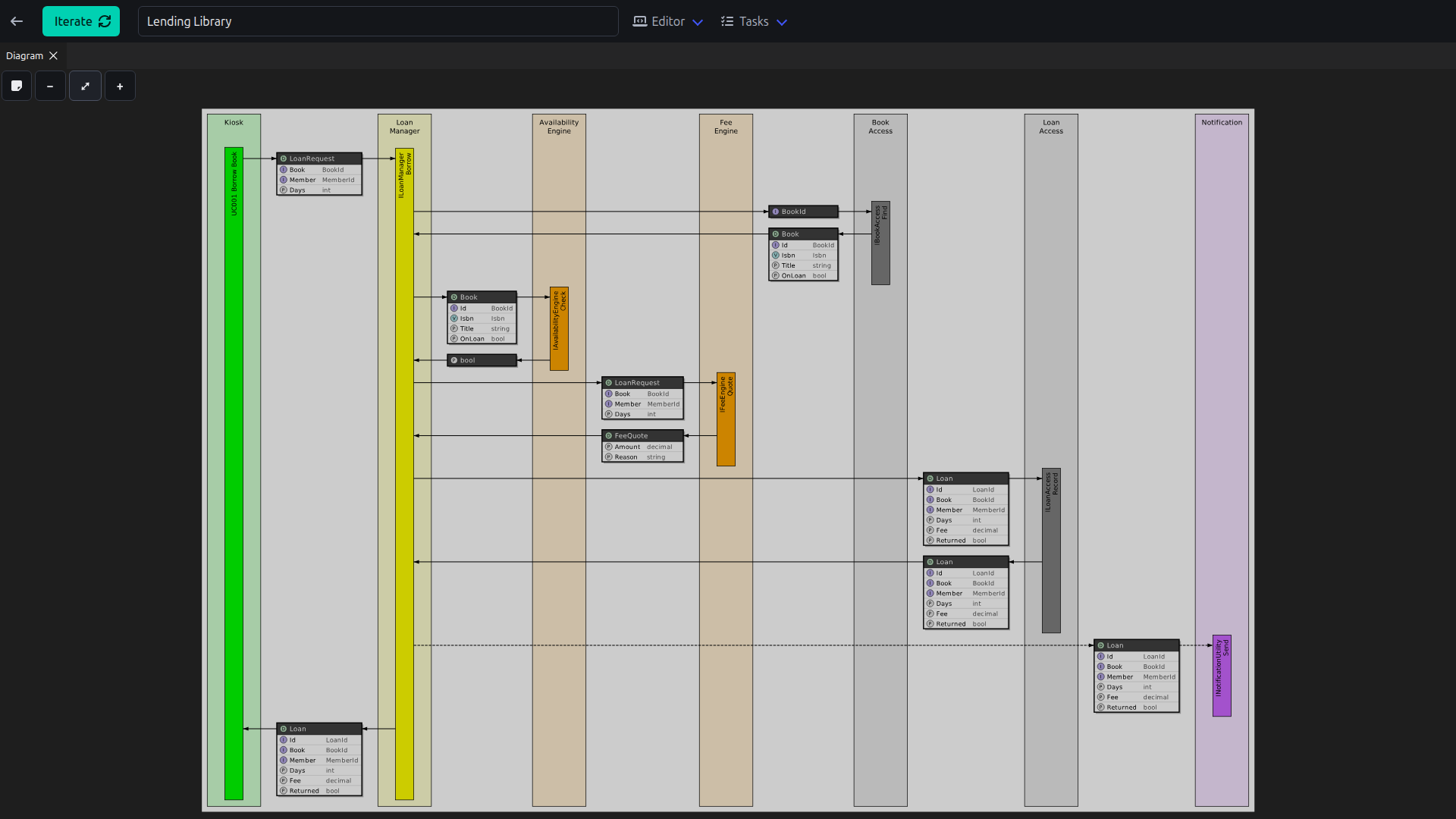
Diagram editing
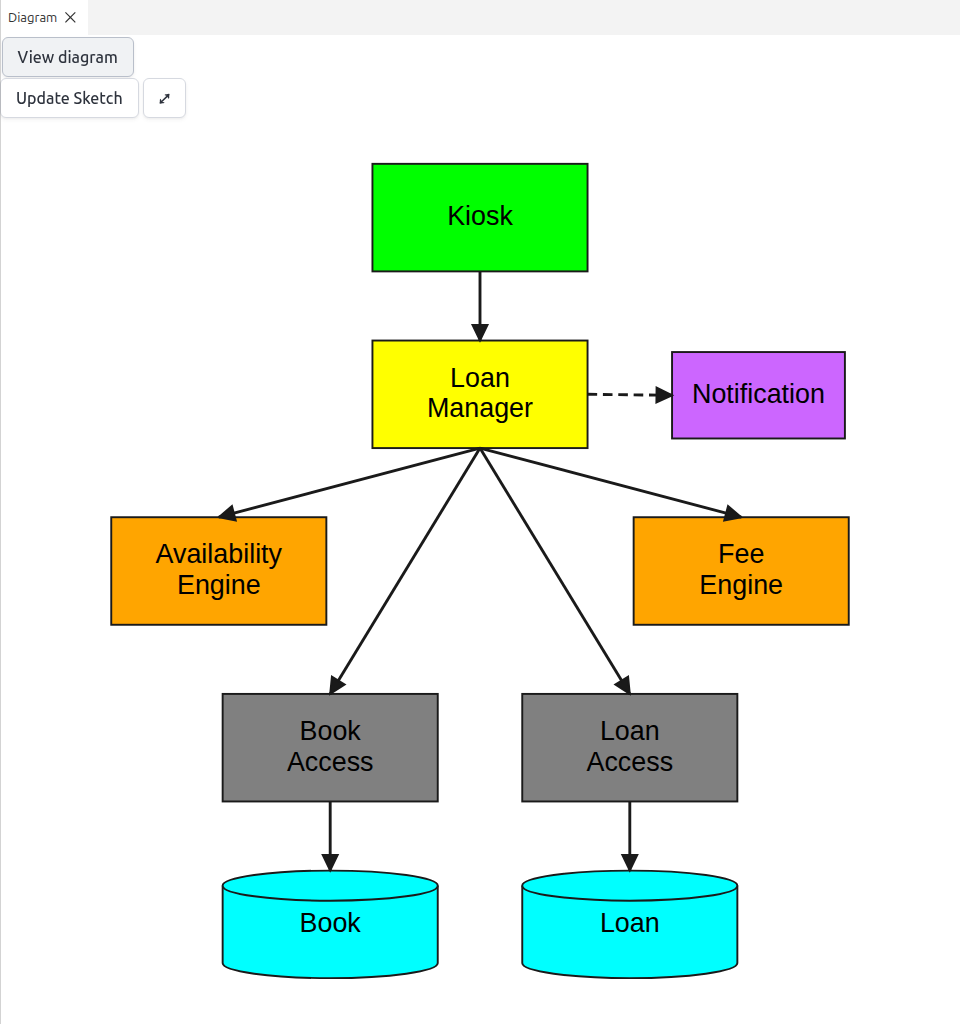
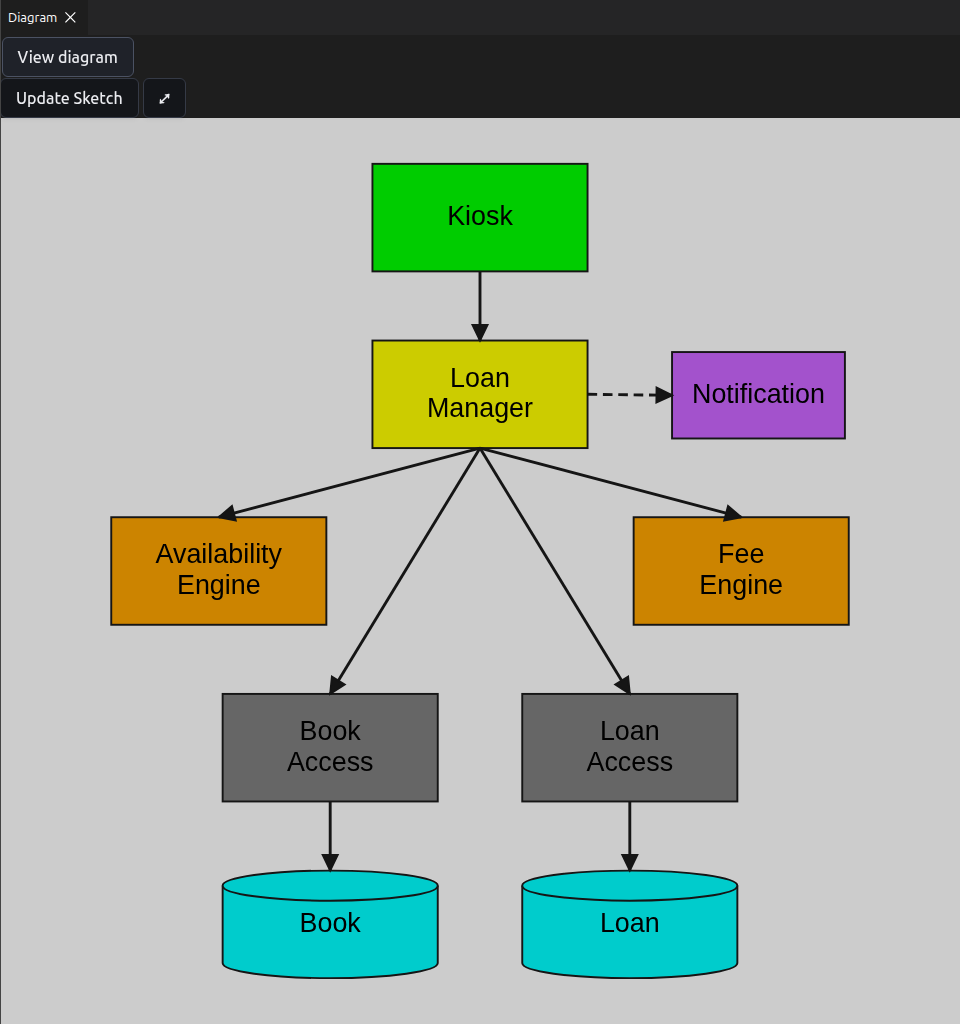
Edit is in the Diagram panel for static aspects, call chains and flows. View diagram goes back to the image.
- In a static aspect or a call chain, you can move boxes. A moved box aligns with the other boxes, and the arrows follow.
- In a flow, you can move steps, change the size of a lane and change the route of an arrow. The toolbar adds a start event, a message send, a message receive, an end event, a gateway, a task or a lane.
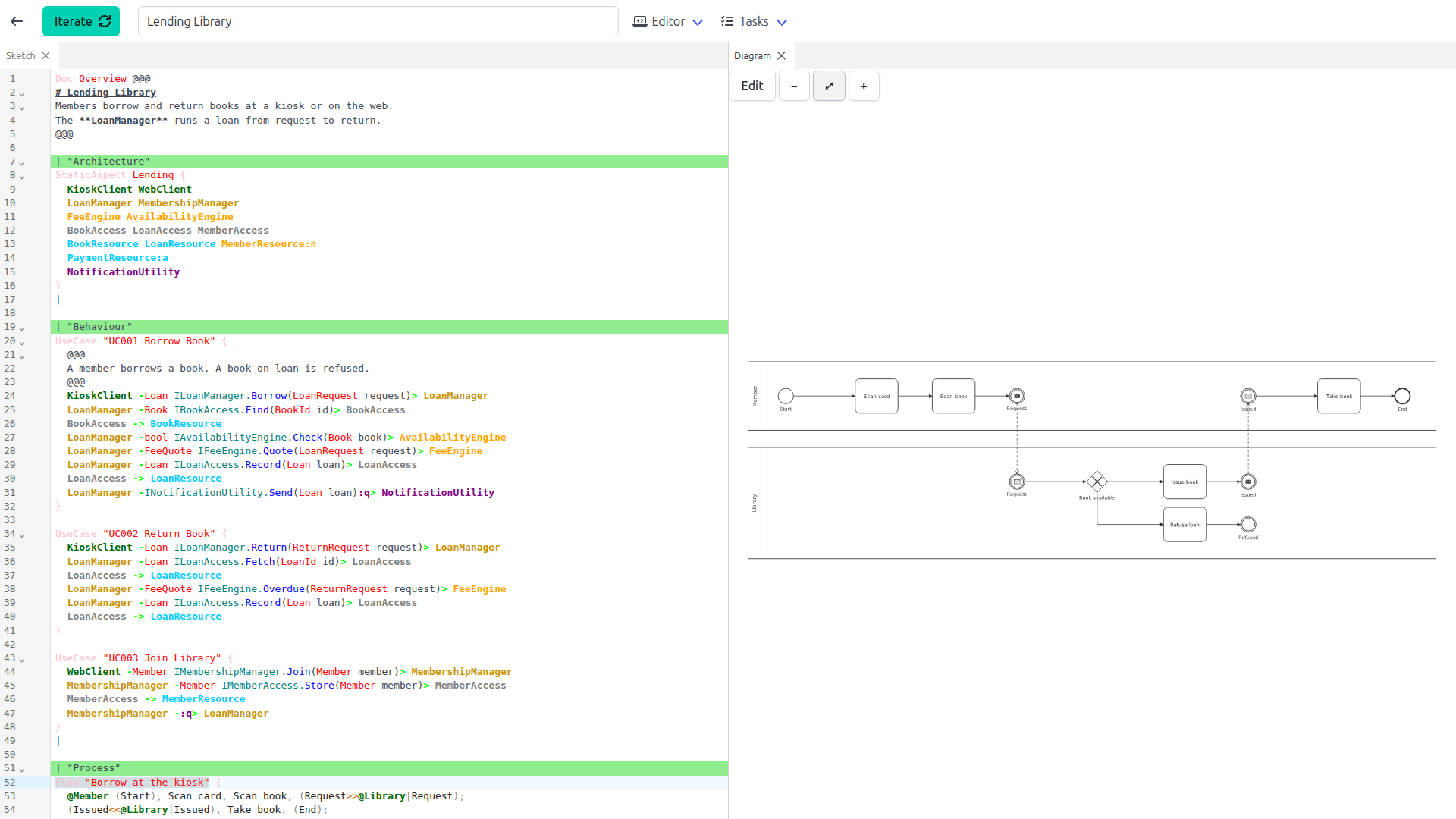
Update Sketch writes the changes to the sketch, then iterates. The pad keeps only the positions that are different from the automatic layout, in a folded [v1 …] block after the closing }. For a flow, Update Sketch also writes the steps.
Live updates
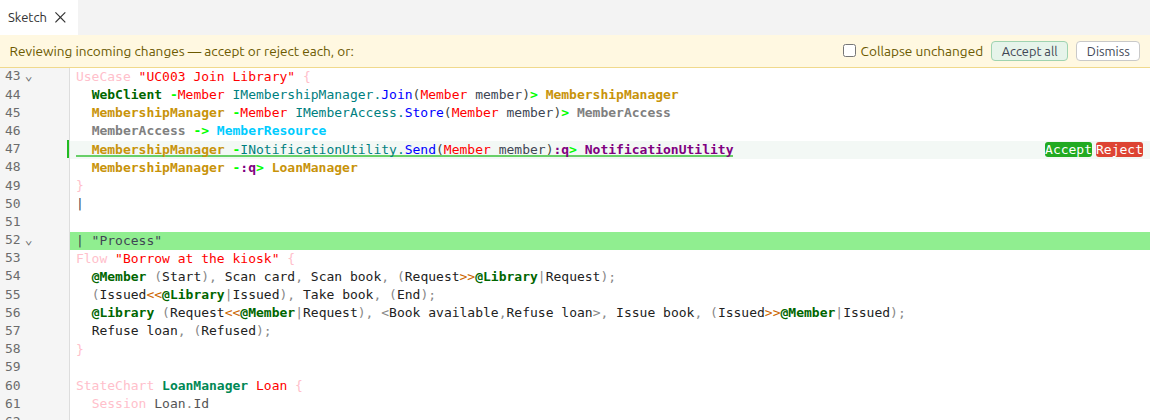
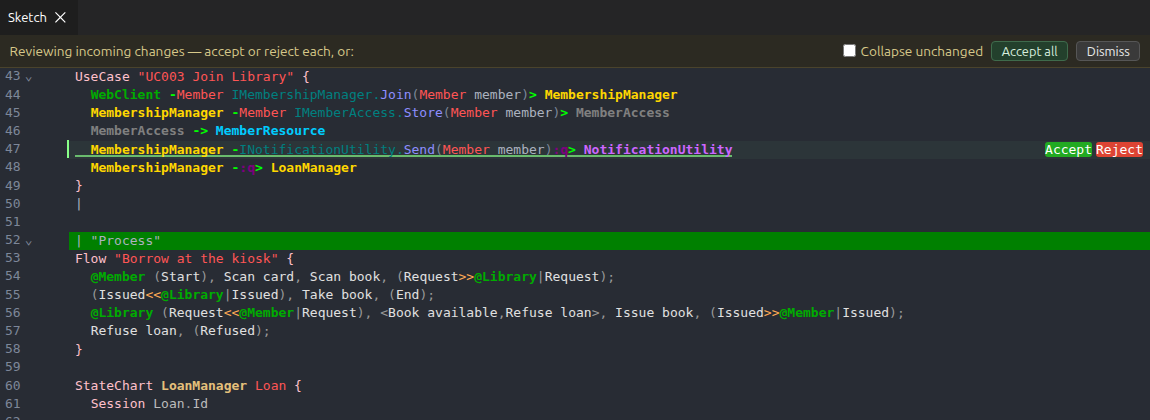
When an agent on MCP or another browser tab changes the sketch, the editor shows the changes in place. Added lines have a highlight. Removed lines show as blocks between the lines.
| Control | Action |
|---|---|
| Accept / Reject | Keep or remove one change |
| Accept all | Keep all changes |
| Dismiss | Go back to your text |
| Collapse unchanged | Hide the lines with no change |
The pad iterates when no changes are left. If you have edits that you did not iterate, the pad shows a banner with Load latest instead.
Sketch Settings
Open from Editor ▸ Reopen panel. The settings are part of the sketch, so all editors of the sketch share the settings. Save keeps a change.
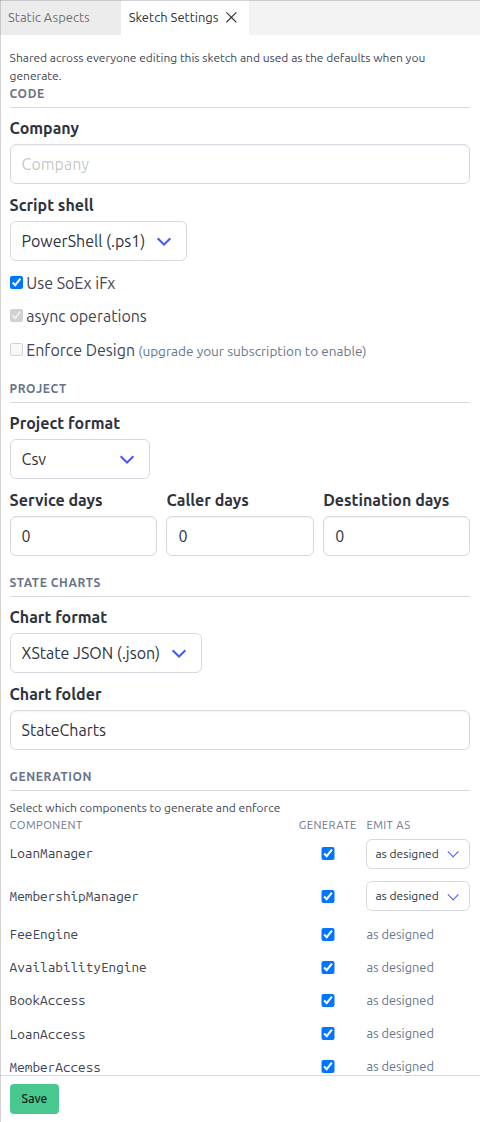
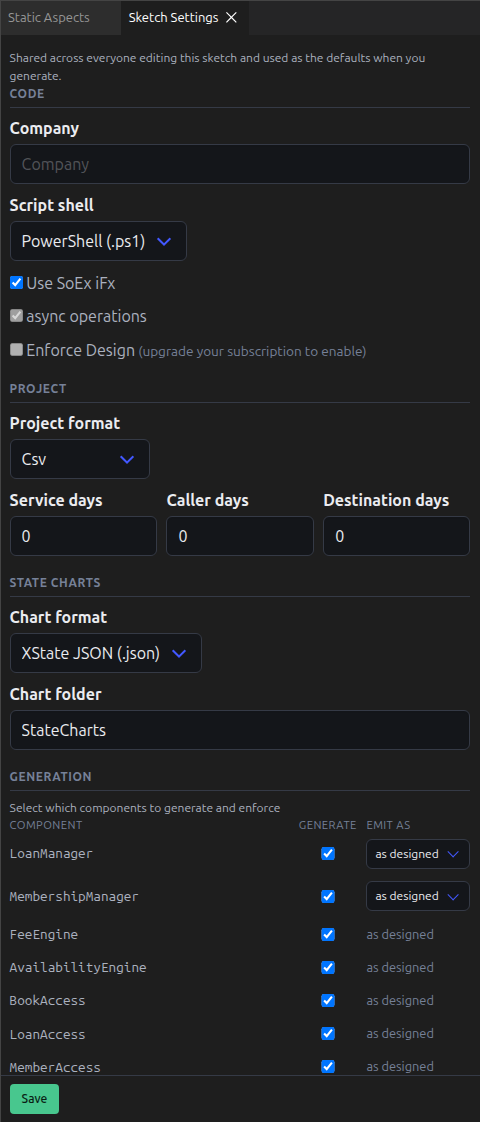
| Setting | Effect |
|---|---|
| Company | The root namespace and the solution name |
| Script shell | PowerShell (.ps1) or BourneShell (.sh) |
| Use SoEx iFx | Use the SoEx in-process host. Use SoEx iFx also sets async operations |
| async operations | Operations return Task |
| Enforce Design | Add modelanalyzer.json and the analyzer to the projects. Only when your subscription includes Enforce Design |
| Project format | Csv or Project Plan, for Tasks ▸ Project Design |
| Service days | The days for each service in the project plan |
| Caller days | The days to add to the caller for each dependency |
| Destination days | The days to add to the destination for each dependency |
| Chart format | XState JSON (.json) or SCXML (.scxml) |
| Chart folder | The folder for statecharts in the service project. The default is StateCharts |
Generation
A row for each manager, engine, access and utility.
| Column | Effect |
|---|---|
| Generate | Make the projects for the component. On by default for managers, engines and accesses |
| Emit as | For a manager, Utility makes the manager as a utility |
A row tagged "no effect" names a component that is no longer in the sketch. Remove deletes the row. The diagrams always show a component as you designed it.
Diagram styling
Applies to the call chain, static aspect and dependency diagrams. Classic uses the standard colours. Custom sets rounded boxes, the line thickness, the border thickness, and a colour for each component type and each resource type.
Editor Settings
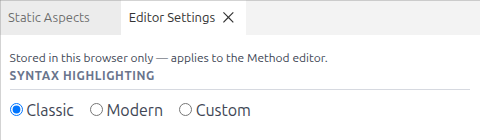
Open from Editor ▸ Reopen panel. The syntax colours are Classic, Modern or Custom. Custom takes a JSON theme for light and for dark. Your browser keeps the syntax colours.
Generate dialog
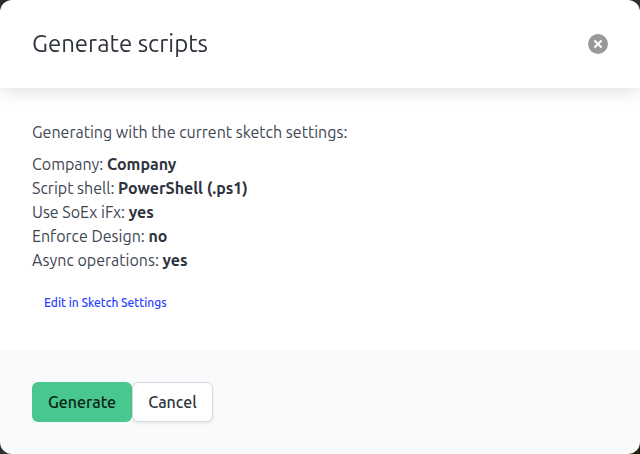
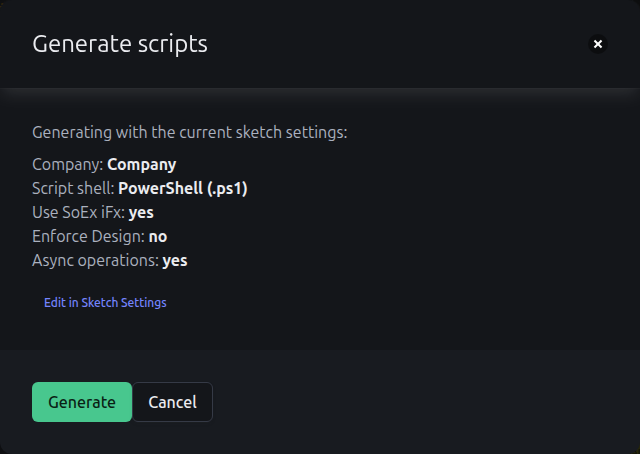
Tasks ▸ Generate shows the settings that the script will use: Company, Script shell, Use SoEx iFx, Enforce Design, async operations, and the chart format and folder if the sketch has statecharts. Edit in Sketch Settings opens the settings. Generate makes the script and shows links to download it. Refer to Generate the solution.
History
Every iterate saves a version. Tasks ▸ History lists the versions, 50 at a time. A version opens read-only. Tasks ▸ Edit most recent goes back to the latest.
Keyboard
| Keys | Action |
|---|---|
| Ctrl+S | Iterate |
| Ctrl+Shift+F | Filter the navigation by name |
| Ctrl+Shift+M | Show the problems below the editor |
| Ctrl+K Ctrl+K | Add or remove a bookmark |
| Ctrl+K ] / [ | Go to the next or previous section |
On macOS, use Cmd. The Editor page has all the keys.